VPS Solo W2
For small websites, VPNs or testing
- 2 vCPU
- 4 GB DDR5 ECC RAM
- 60 GB NVMe
- 100 GB Cloud Storage included free
- KVM · full root access
- Snapshots included
- 1 Gbit/s connection
€64.69 paid annually, incl. VAT
No setup fee
Servers · Virtual servers
Run your website, a VPN or your own application with full root access. NVMe storage and 100 GB of separate Cloud Storage for your backups are included. CPU capacity is shared with other virtual servers.
From €5.39 per month · with a 12-month term
Not sure which server fits your requirements?
Plan overview
Run a website, VPN or your own application: you decide what runs on your VPS. Choose the resources you need and use the included Cloud Storage for backups you set up yourself.
12-month term, paid in advance. Save 10%.
For small websites, VPNs or testing
€64.69 paid annually, incl. VAT
For multiple websites and applications
€107.89 paid annually, incl. VAT
For shops, databases and containers
€194.29 paid annually, incl. VAT
For larger projects needing more memory
€323.89 paid annually, incl. VAT
For memory-intensive applications
€539.89 paid annually, incl. VAT
VPS or Root Server
Both give you full root access. You manage the operating system and applications yourself. The difference is the CPU performance available to you.
VPS
For websites, VPNs, development environments and applications with varying workloads. CPU performance on the host is shared with other servers.
View VPS plans →Root Server
For shops, databases and applications that regularly need computing power. Your booked CPU performance is continuously available to your Root Server.
View Root Server plans →Included with every VPS
Cloud Storage provides separate storage space for your backup copies. Connect your own backup software to this storage. In your software, choose which files to back up and how often.
Cloud Storage appears as a separate product in your customer area and can be expanded when needed. The included capacity stays free while your VPS contract is active. Automatic backups are not included.
Add more Cloud Storage whenever you need it: each additional 20 GB costs €0.20 per month. Upgrades to this separate Cloud Storage are billed monthly. CPU, RAM and Local Block Storage are billed together with your VPS.
Administer it yourself
On your virtual server, you decide everything yourself: operating system, software and configuration down to the kernel modules.
That also means: updates, hardening and backups are in your hands. If you want us to take care of that, a Managed Server is the better choice.
Hardware platform
Our virtual servers run on AMD EPYC host systems with DDR5 ECC RAM and enterprise NVMe SSDs in RAID 6, operated in German data centers. You get your own virtual machine with full root access. CPU and RAM can be expanded when needed.
Features
We offer you a wide selection of preconfigured images for installation on your virtual server. The images can be installed easily via the Server Control Panel.
You can upload and use your own ISO images (in .iso format) or existing virtual servers (in .qcow, .qcow2, .raw format) via your browser or cURL.
Via the VNC console, you can reach your server even when it no longer responds over the network. For repairs, you can start the rescue system.
You get help from us by email and phone, from real people.
Optionally, you can add the Plesk control panel in the Web Admin / Web Pro / Web Host editions directly in the ordering process.
Local Block Storage adds an extra NVMe disk to your VPS. Choose a size from 20 GB to 1,000 GB when ordering.
Back up your server’s files and folders to separate backup storage in Europe. Cloud Backup is a separately purchased add-on.
Explore Cloud BackupEverything in your own hands
Reinstall, set up the firewall, open the VNC console, start the rescue system. These views are part of every virtual server.
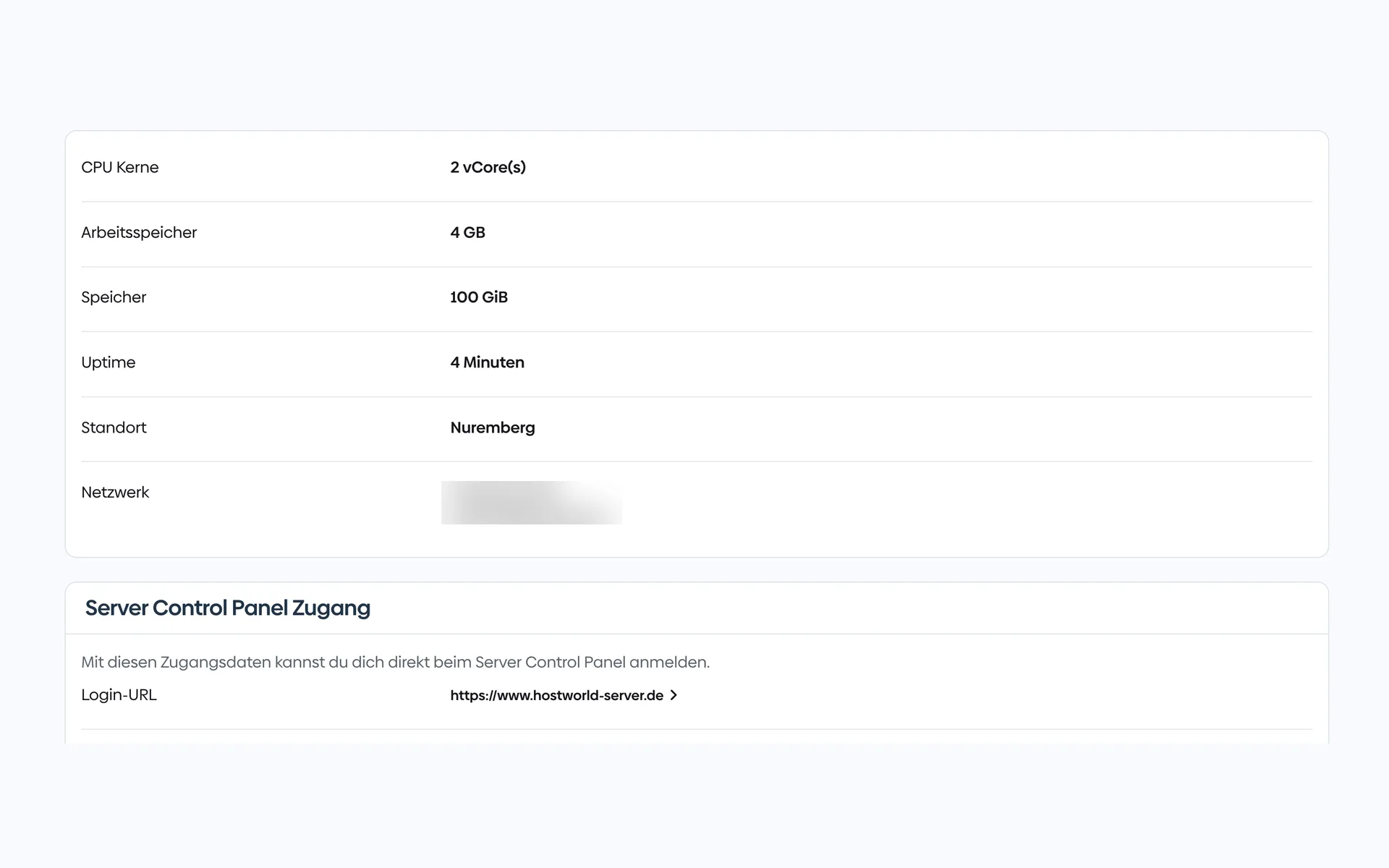
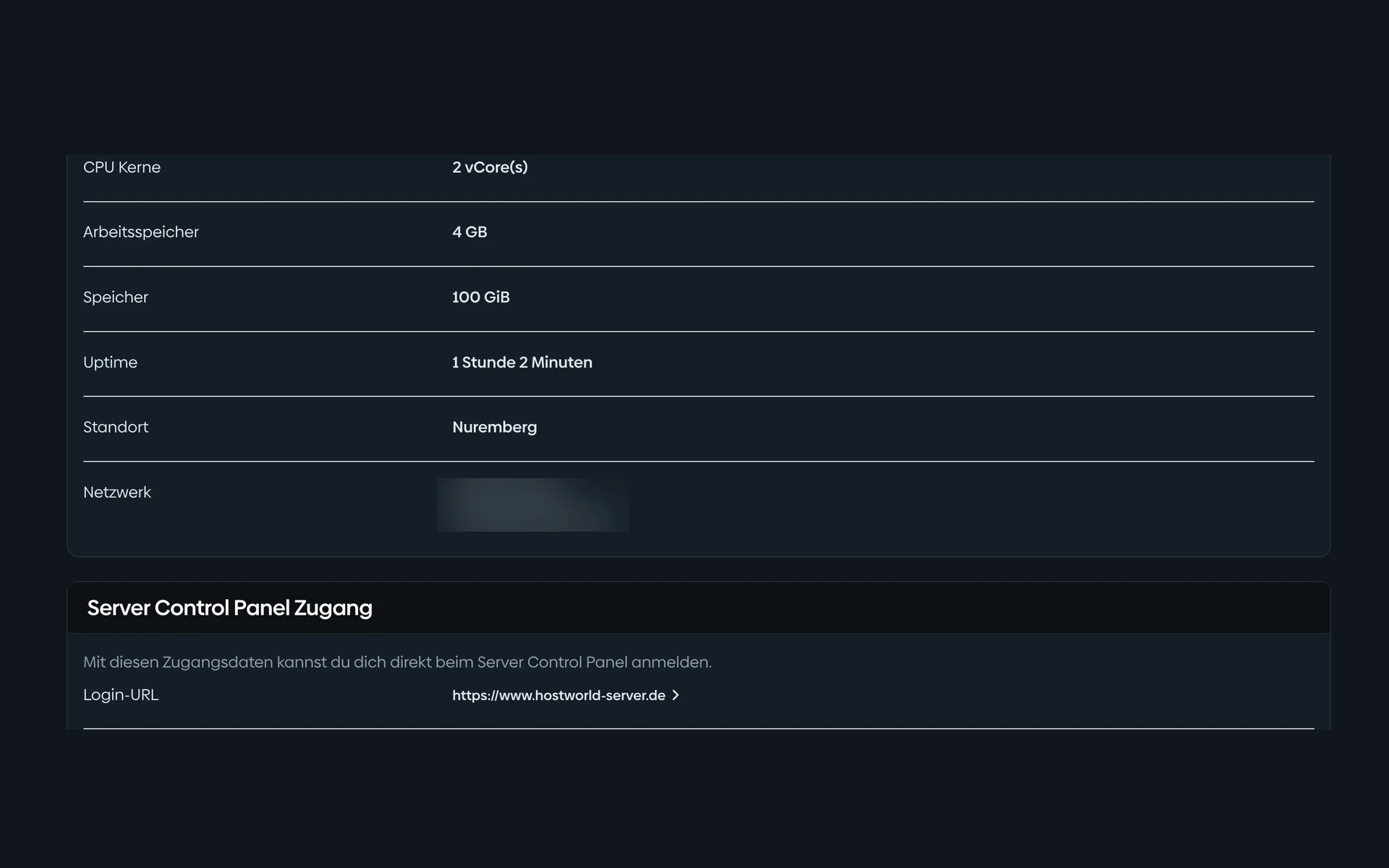
1 of 13
CPU, memory, storage, location, and your IP addresses are listed in the Customer Menu. From there, one click takes you to the Server Control Panel.
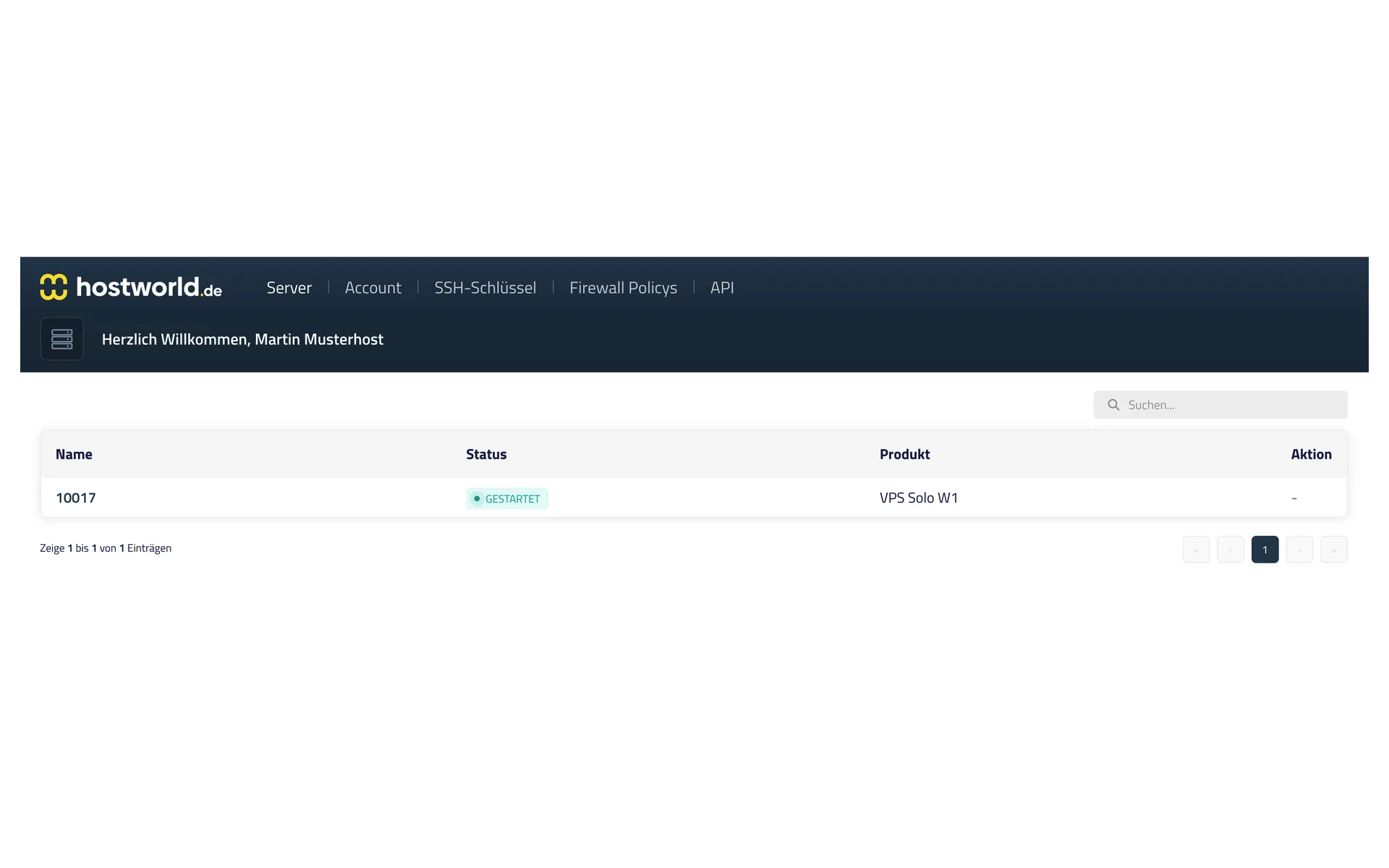
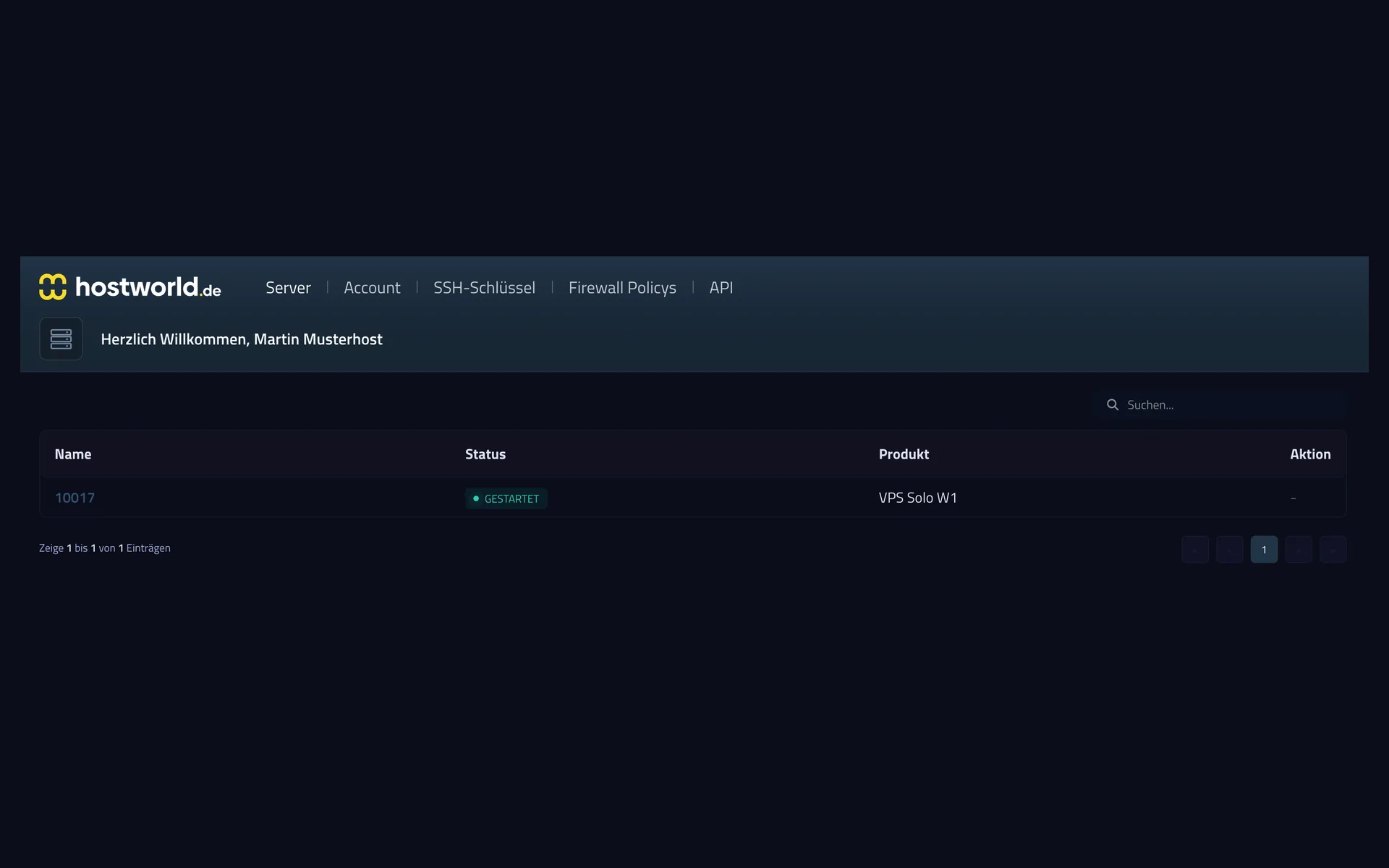
2 of 13
If you have several servers, you can see at a glance which one is running. One click opens the management view of the individual server.
3 of 13
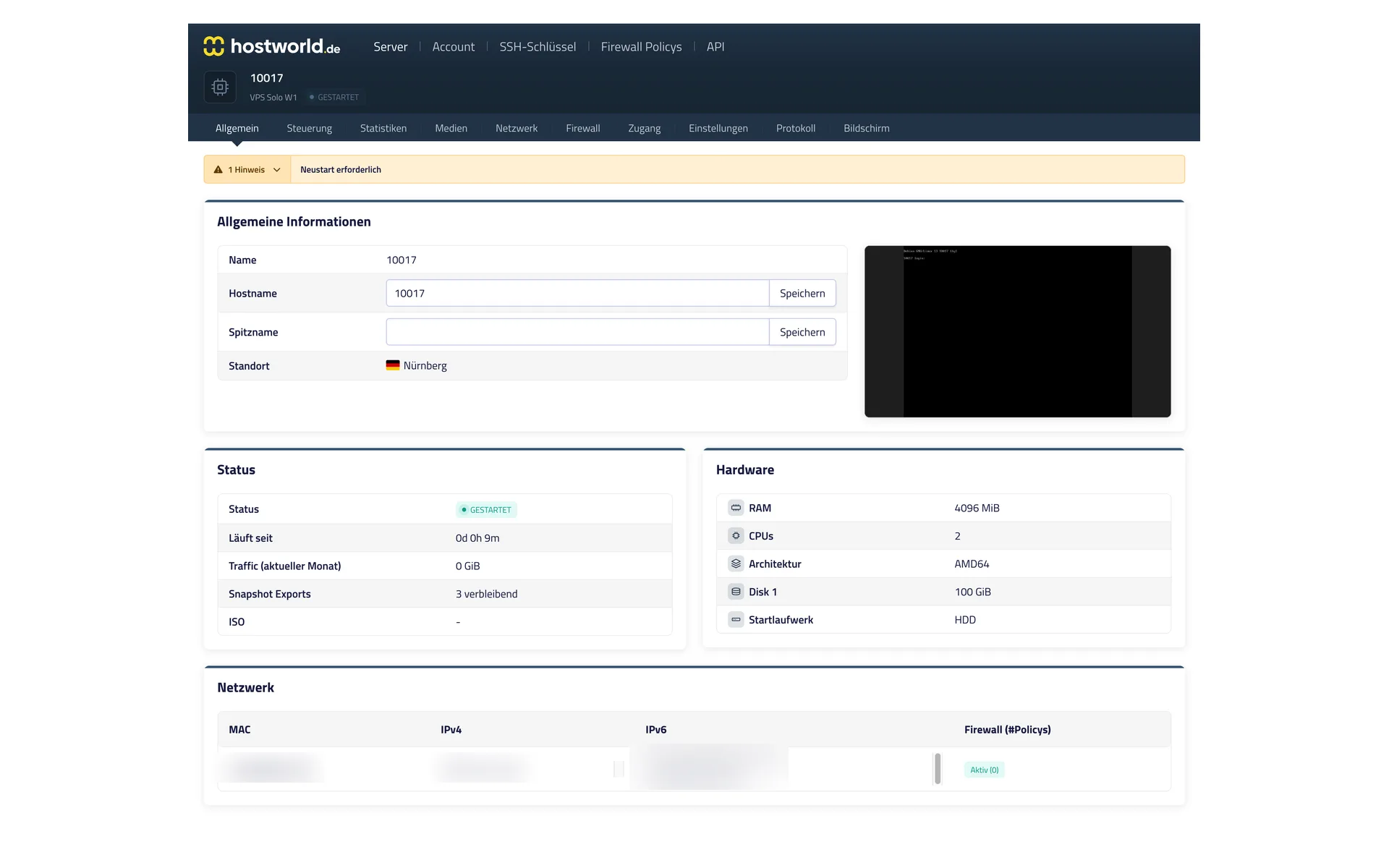
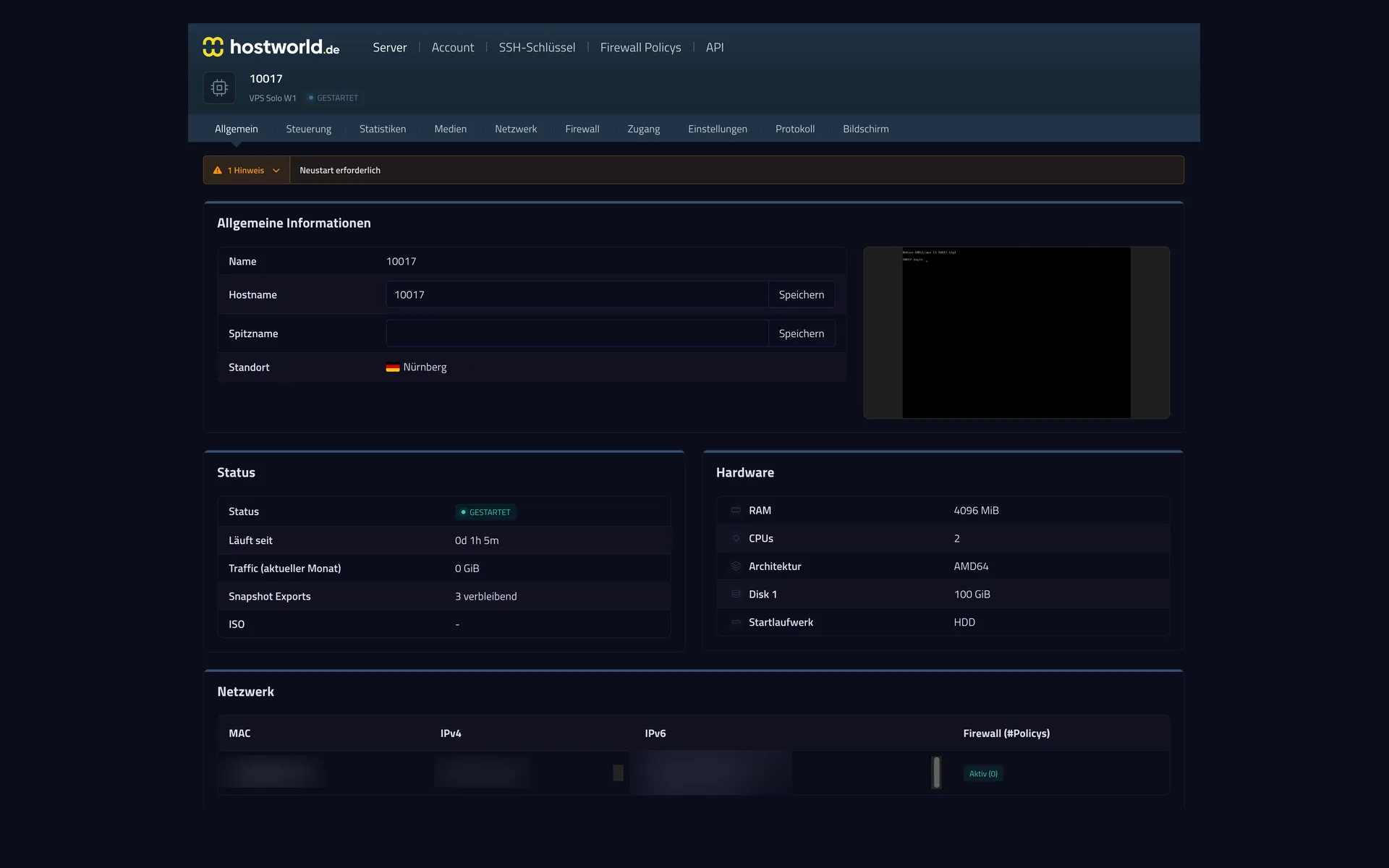
Status, uptime, hardware, and network, clearly laid out on one page. Plus a preview of the current screen. You can see right away whether your server is doing what it should.
4 of 13
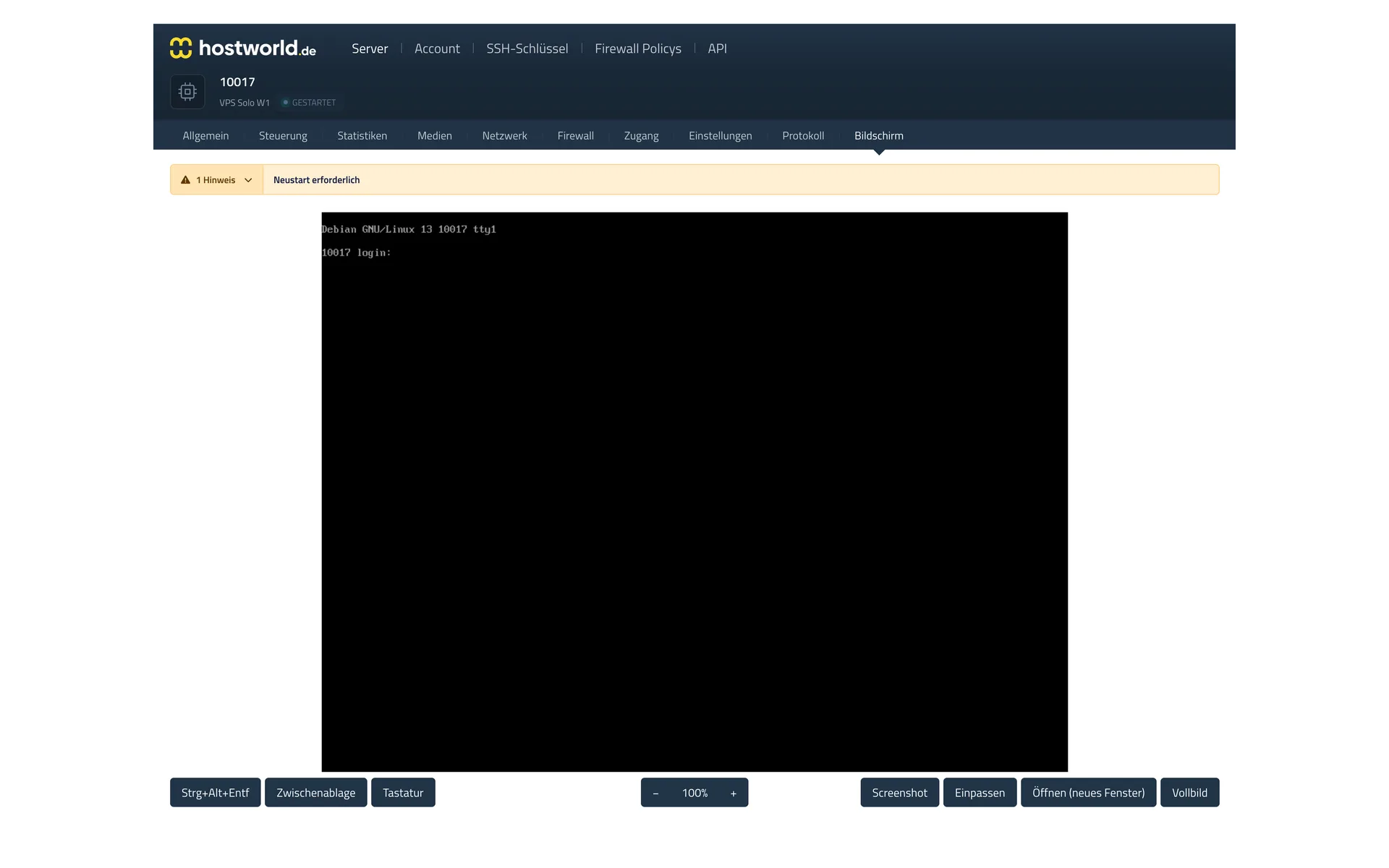
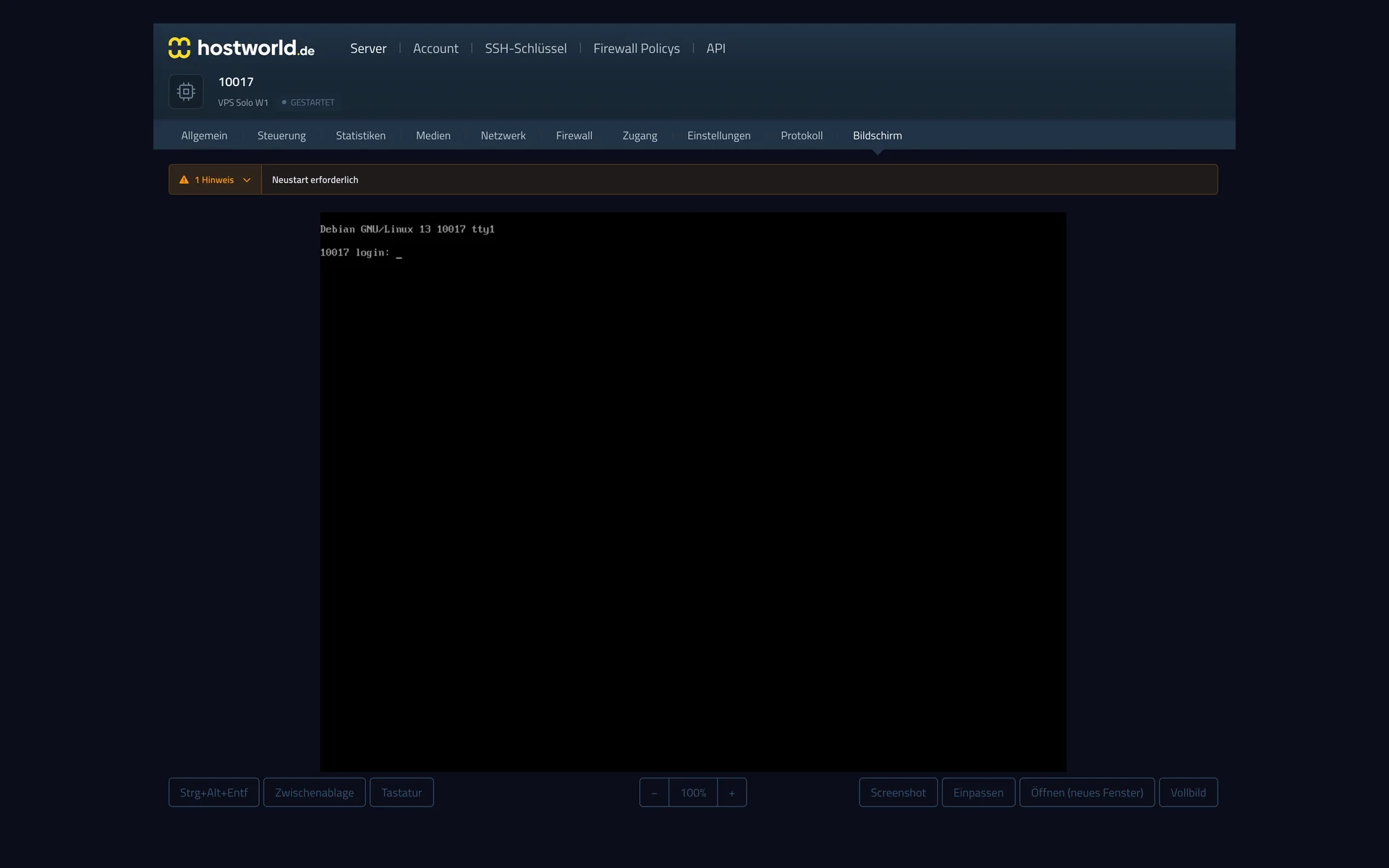
The VNC console shows you your server's screen right in the browser. That way you can reach your server even when it is not reachable over the internet.
5 of 13
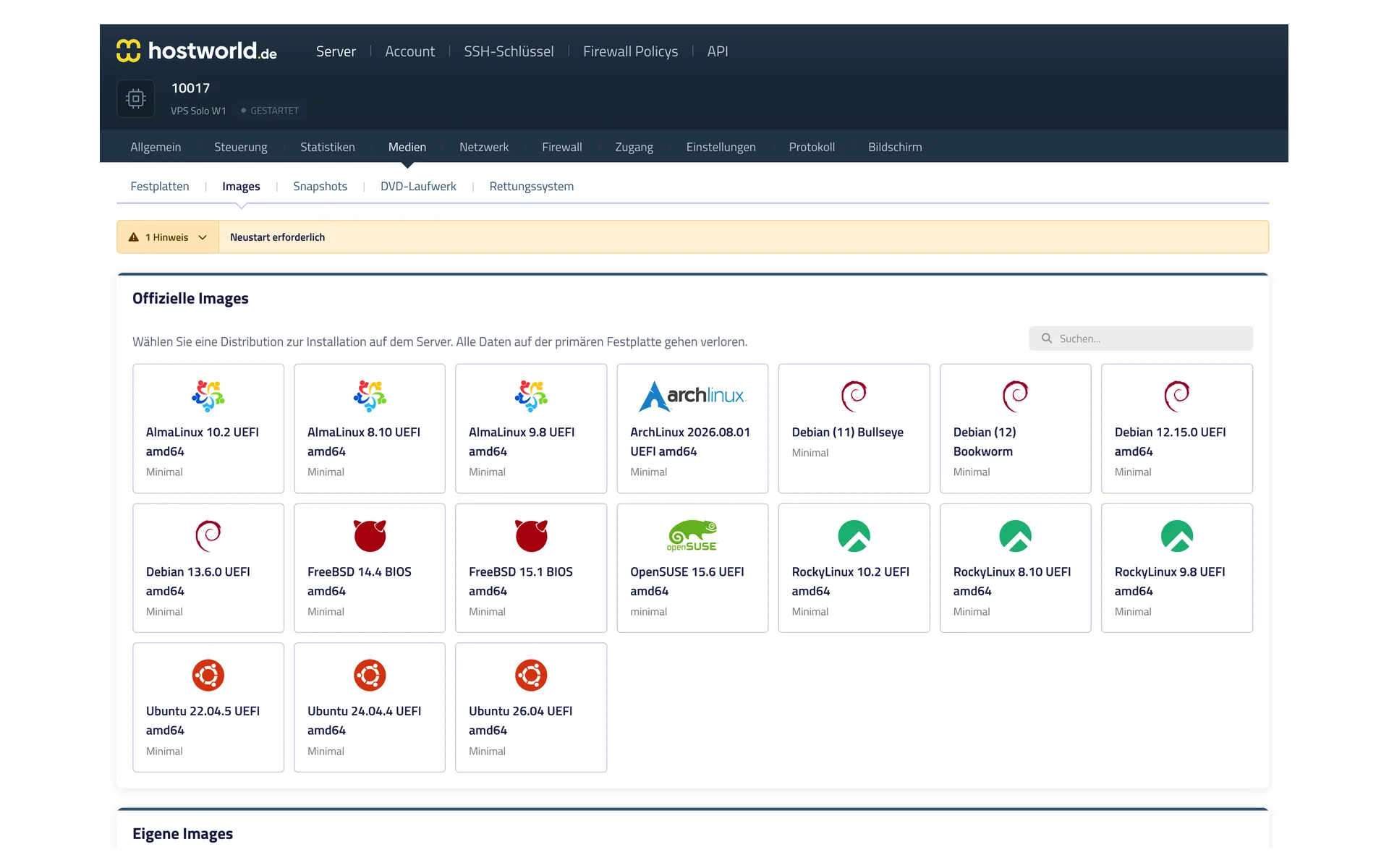
AlmaLinux, Arch, Debian, FreeBSD, OpenSUSE, Rocky, Ubuntu: you start the installation yourself, with no ticket and no waiting.
6 of 13
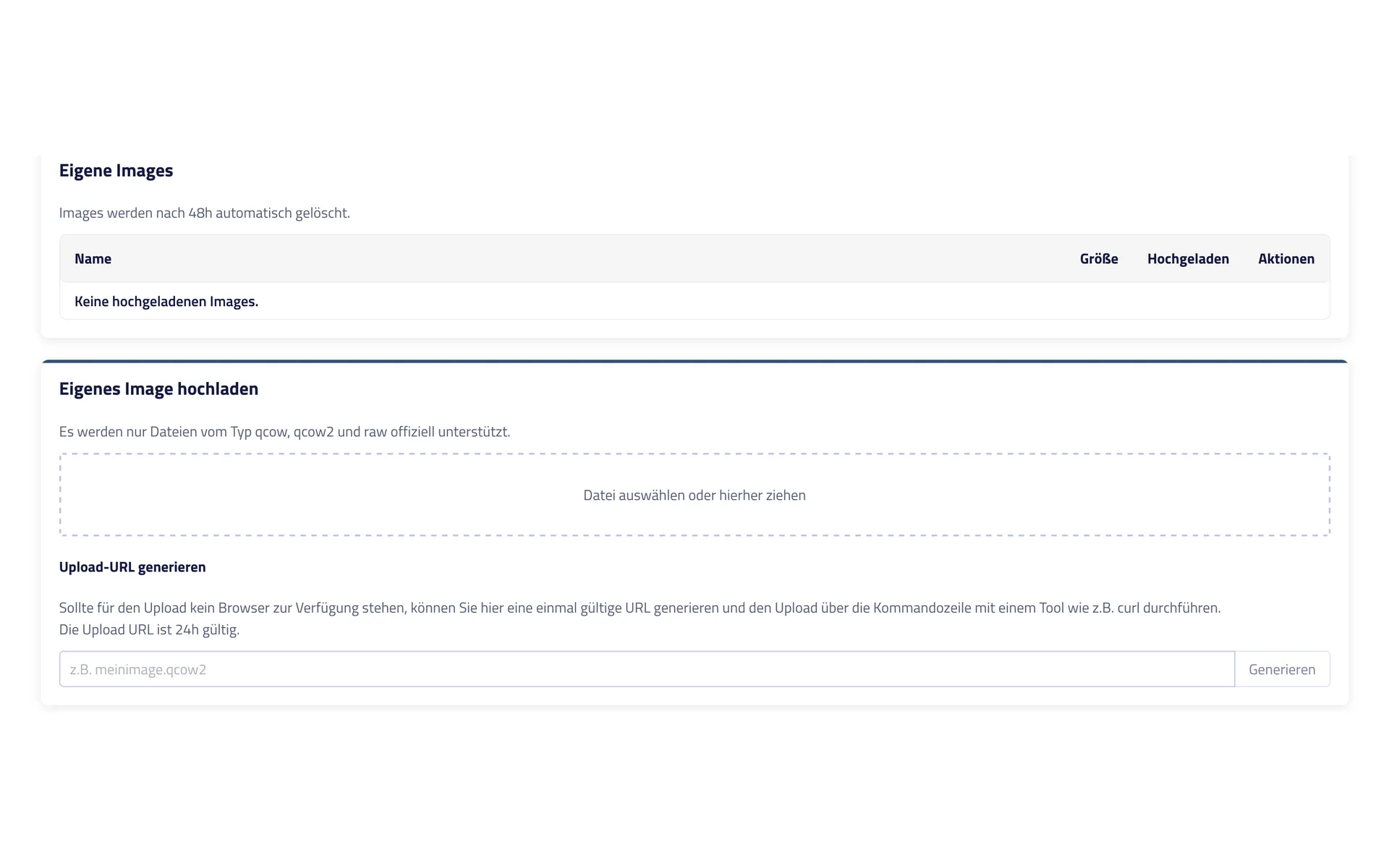
You upload qcow, qcow2, and raw files in the browser. If you prefer the command line, generate an upload URL and push the image over with cURL.
7 of 13
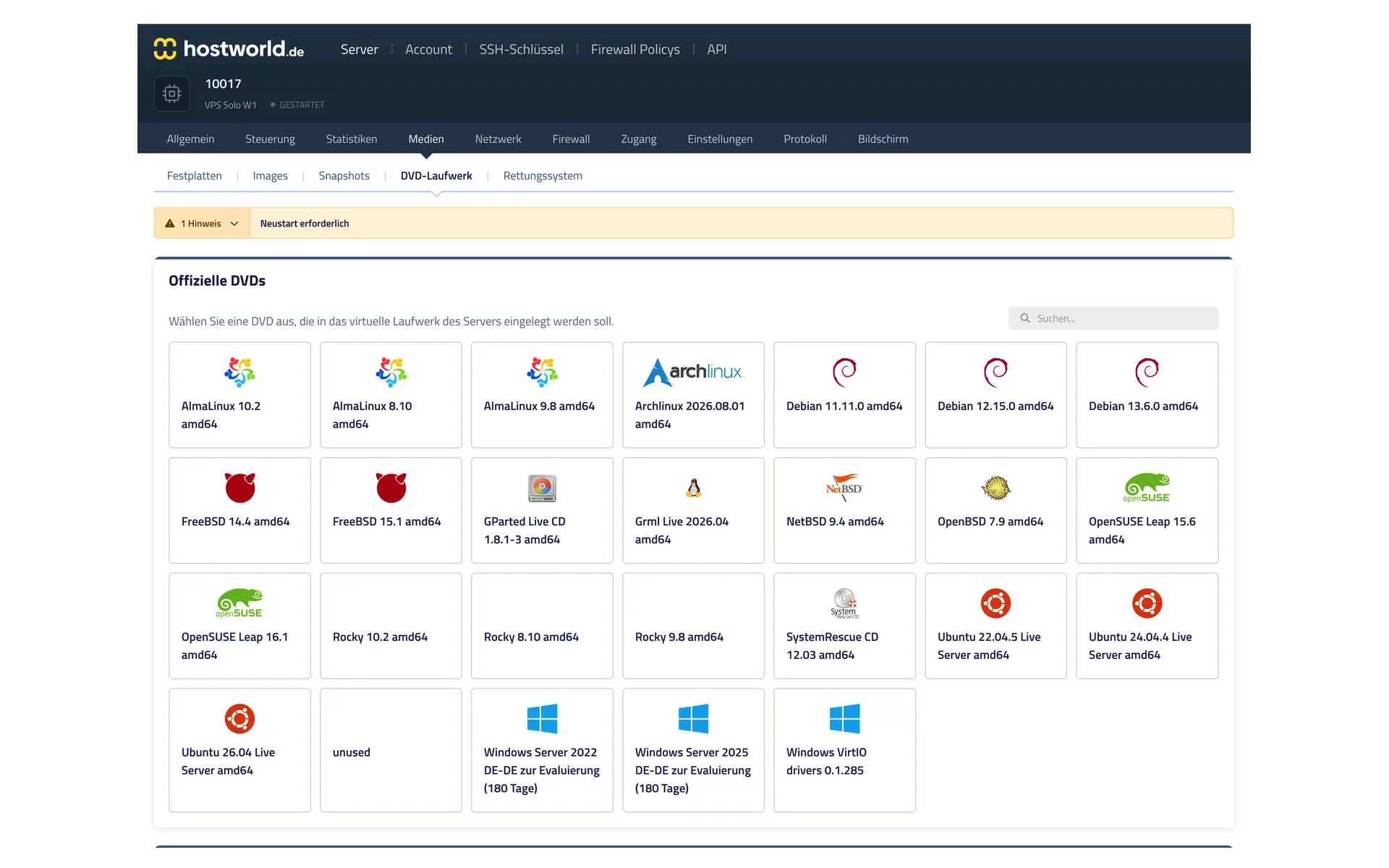
From rescue tools to Windows Server for evaluation: the image you want goes into the virtual drive, and the server boots from it.
8 of 13
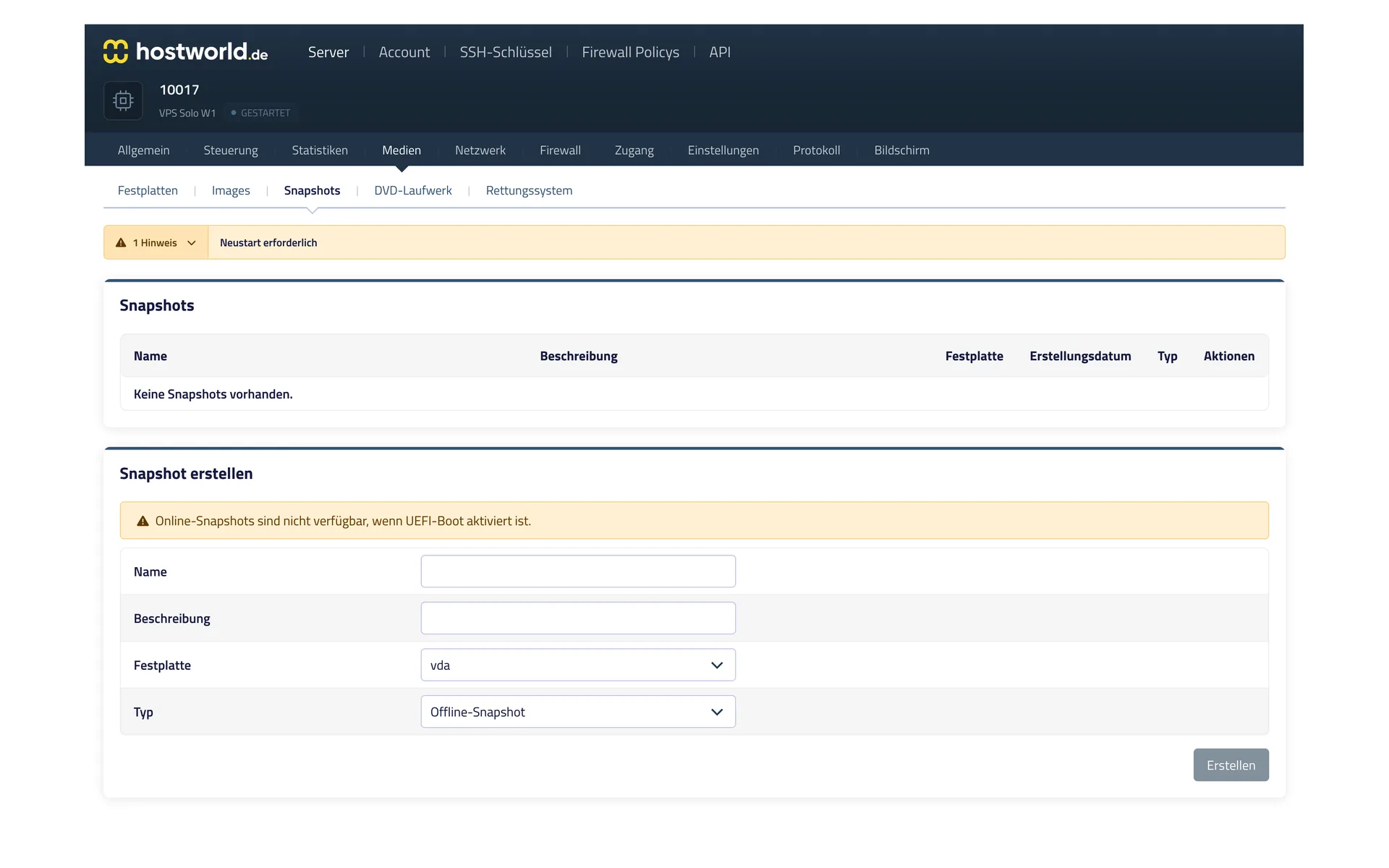
Before an update or a risky change, capture the state of the server with a snapshot. If something goes wrong, you go back to it.
9 of 13
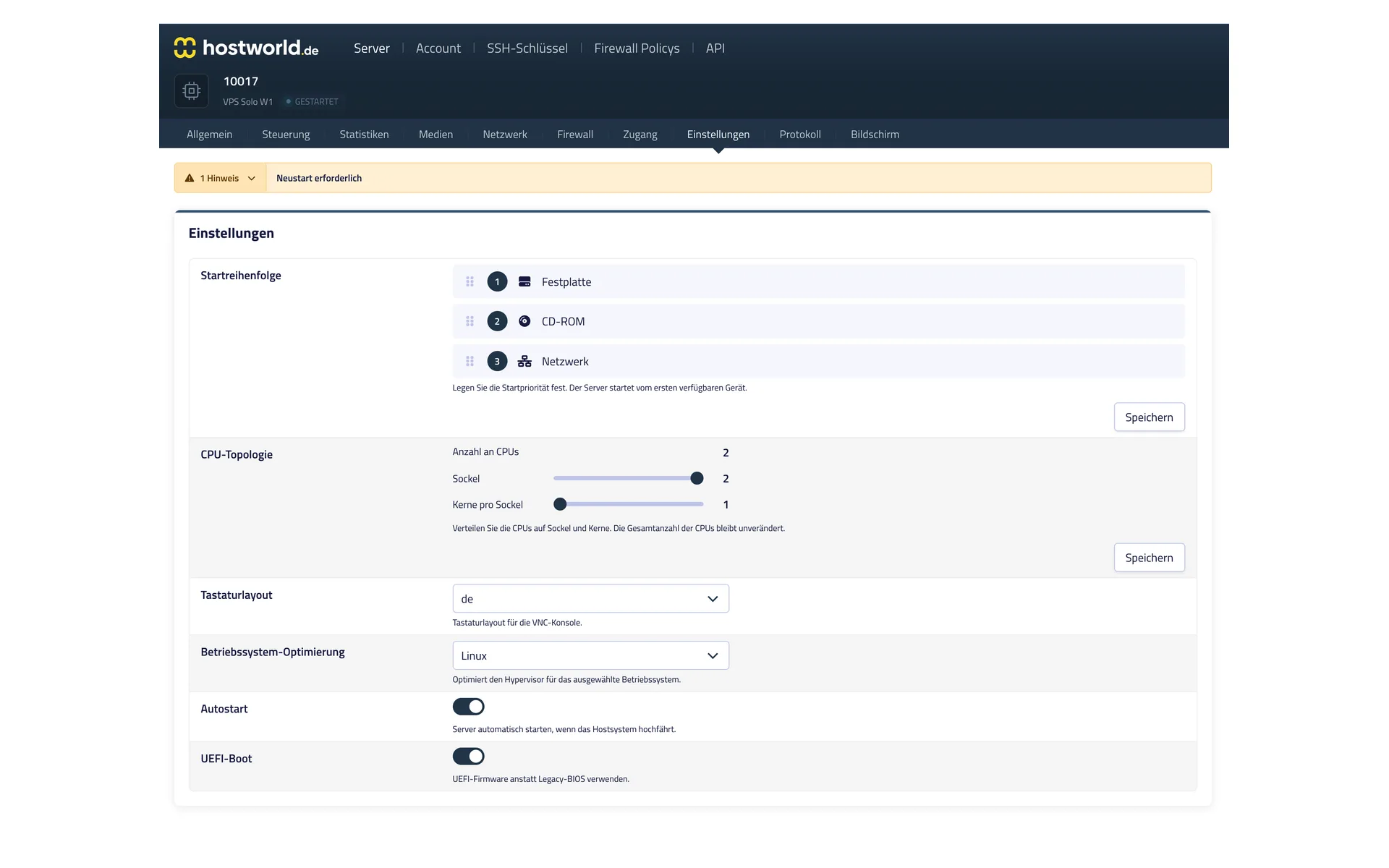
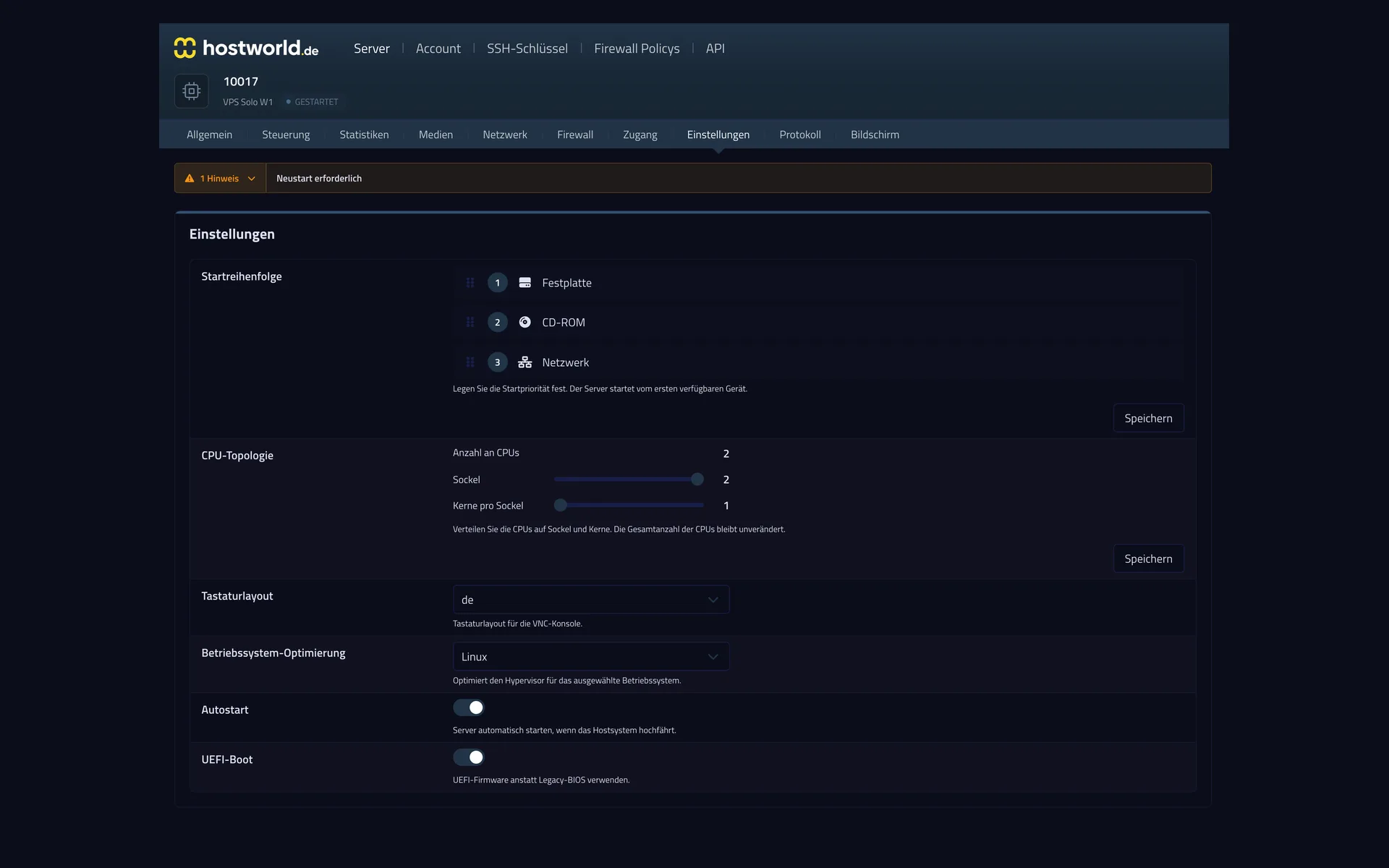
Which device to boot from, how the CPU cores are divided, UEFI or BIOS: settings that elsewhere are left to support, you make yourself.
10 of 13
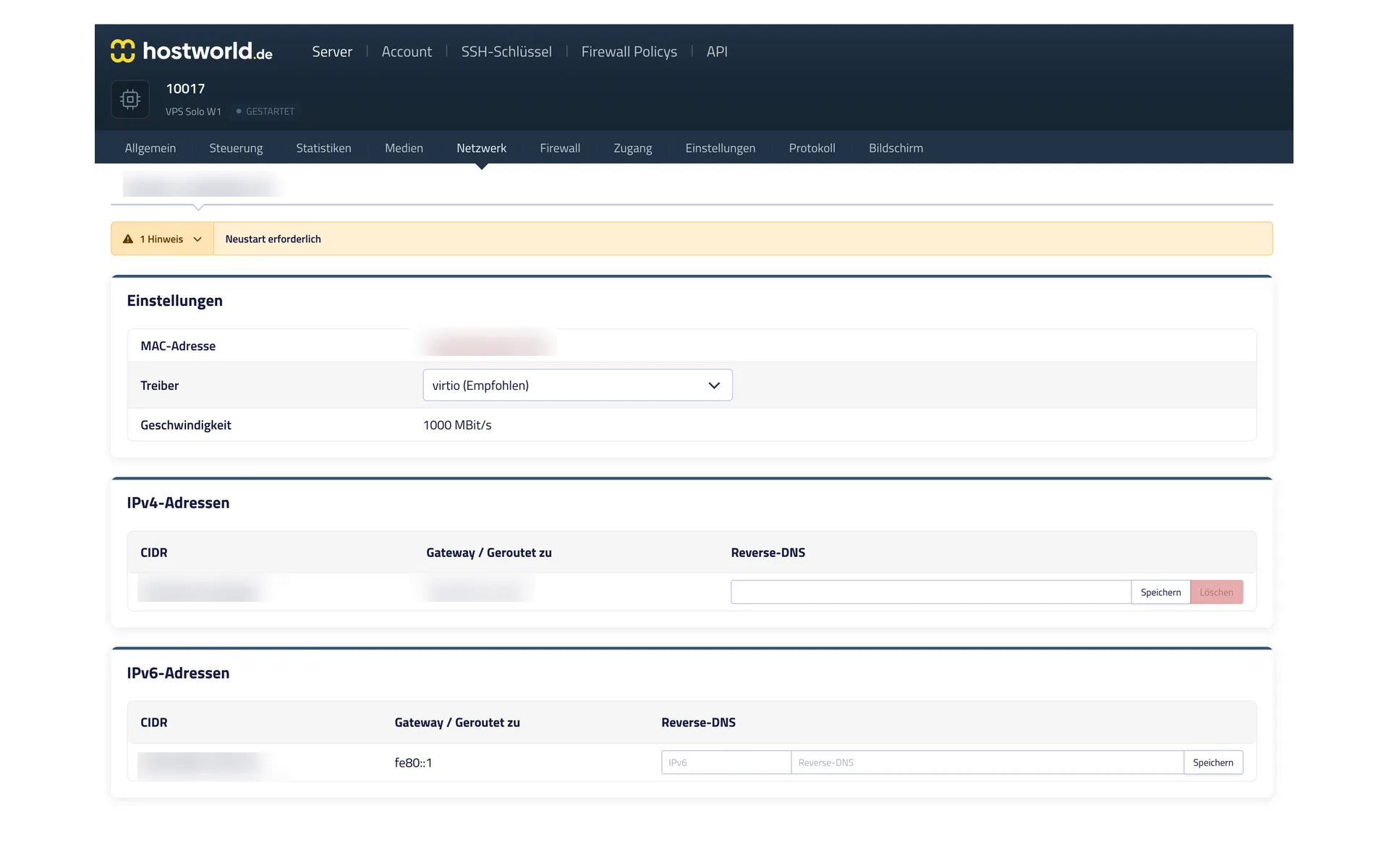
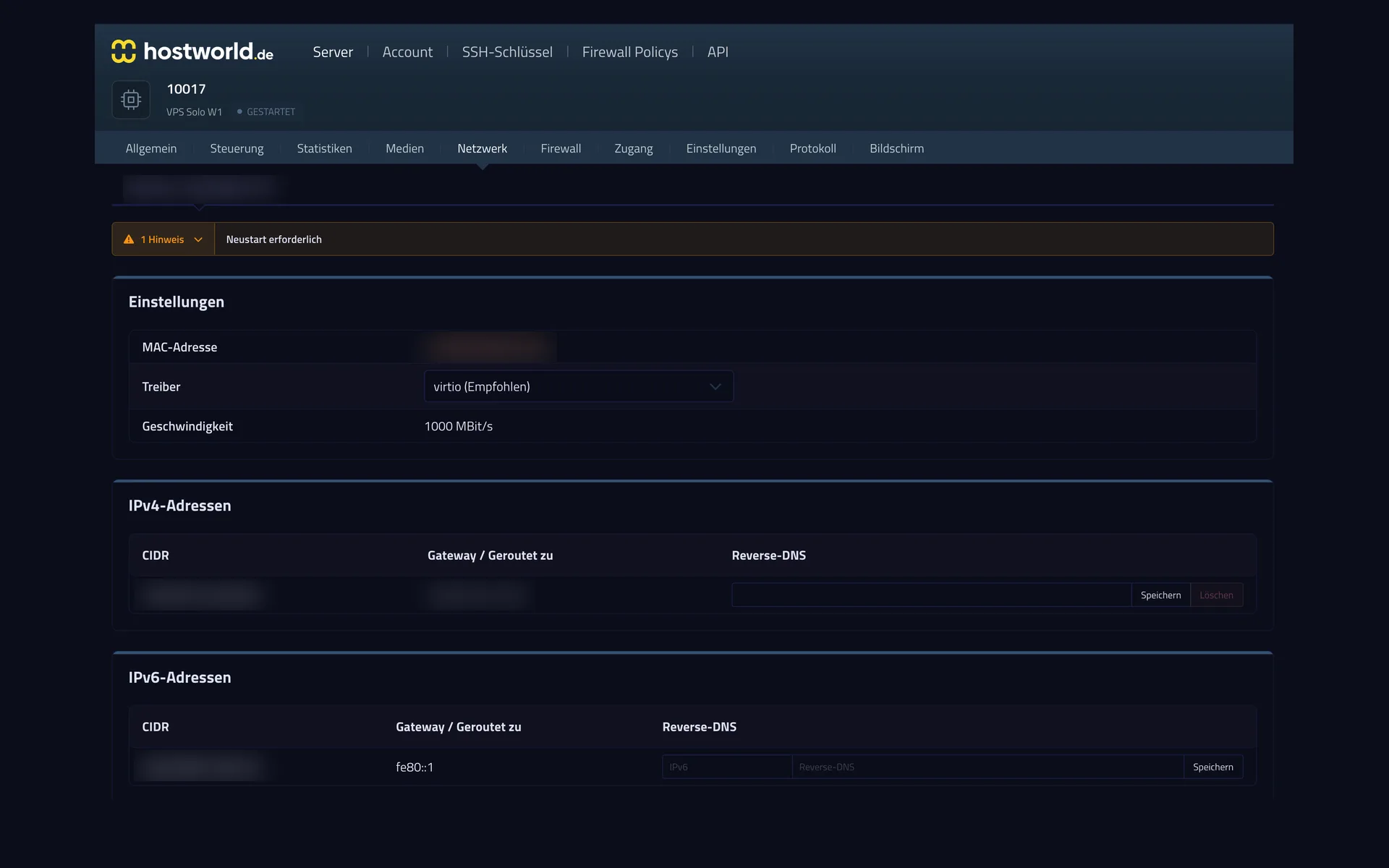
Every server comes with an IPv4 address and its own IPv6 network. You set the reverse entry yourself, which is often decisive for sending mail.
11 of 13
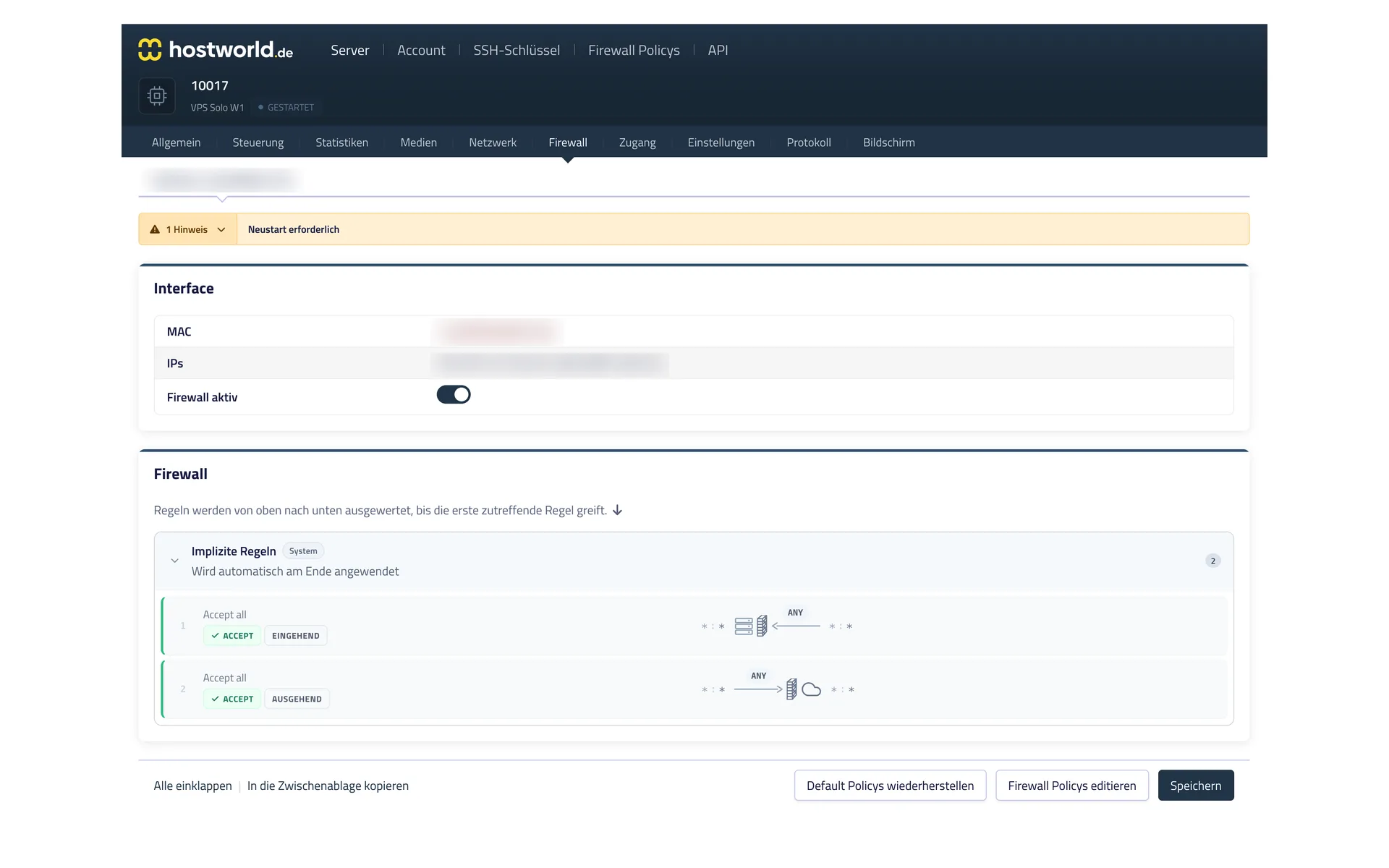
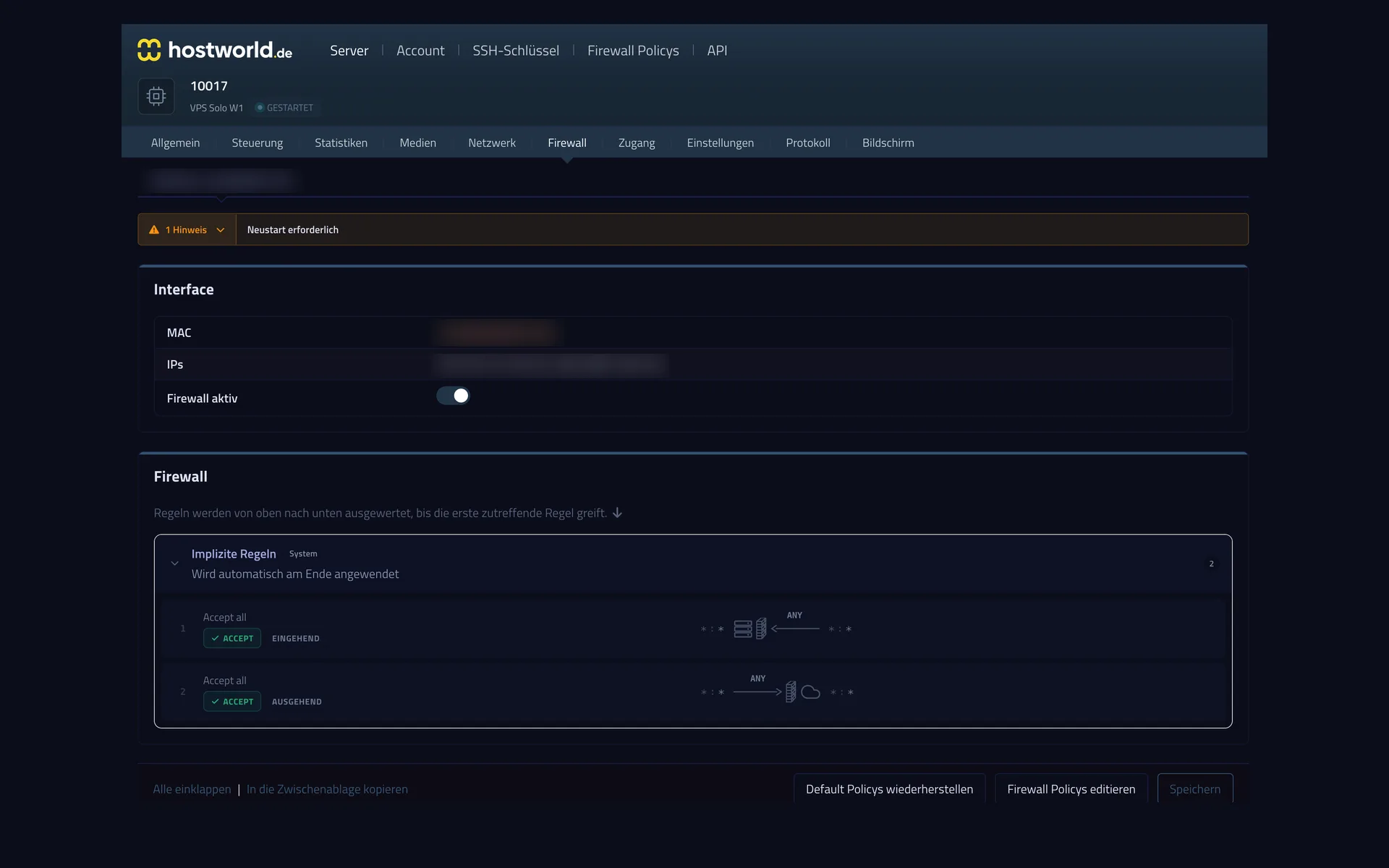
The firewall rules take effect in front of your server, so they also apply when something goes wrong inside the server itself. You can switch the firewall on and off at any time.
12 of 13
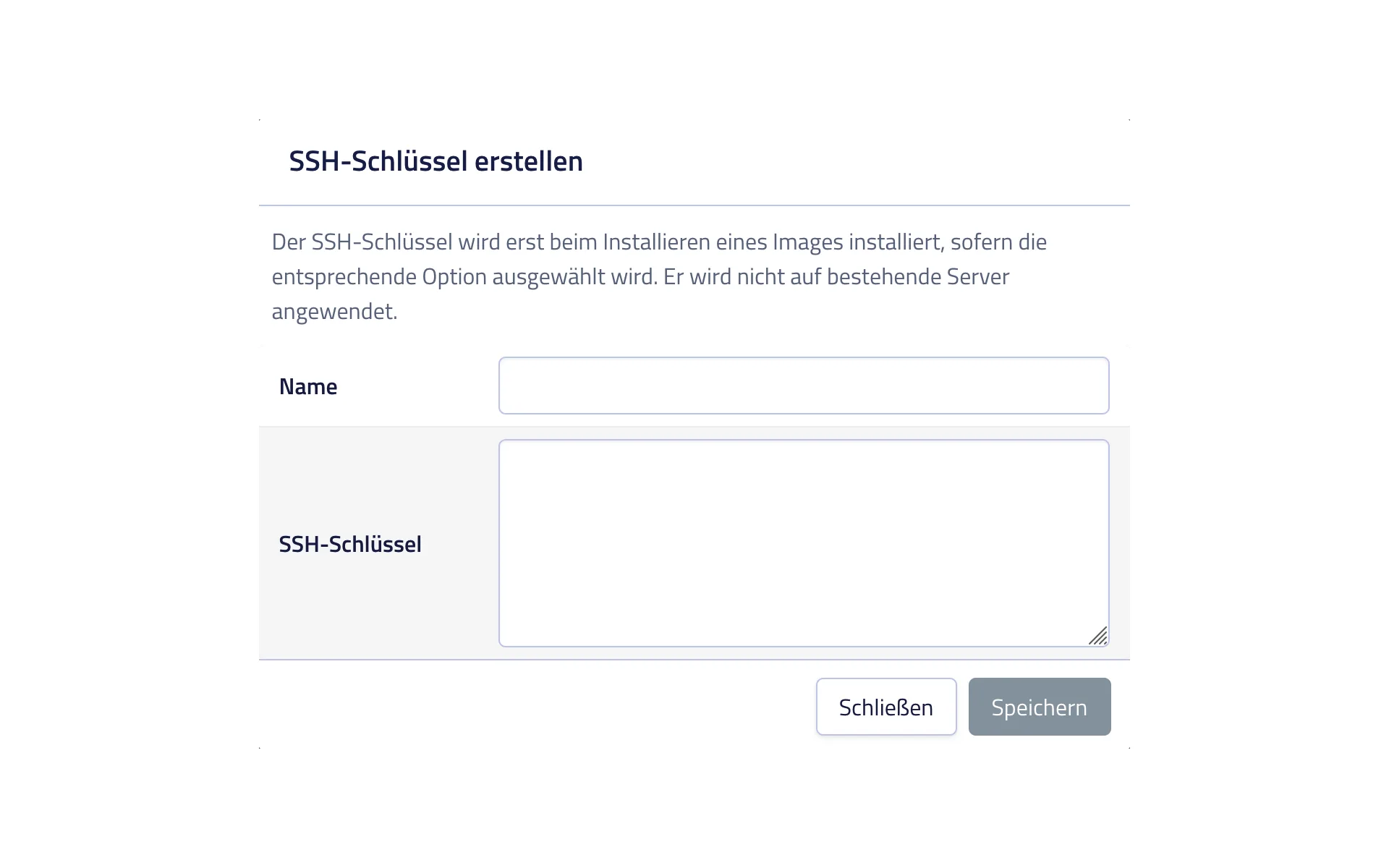
Store your public SSH key so it is set up right along with the installation. Log in without a password, from the start.
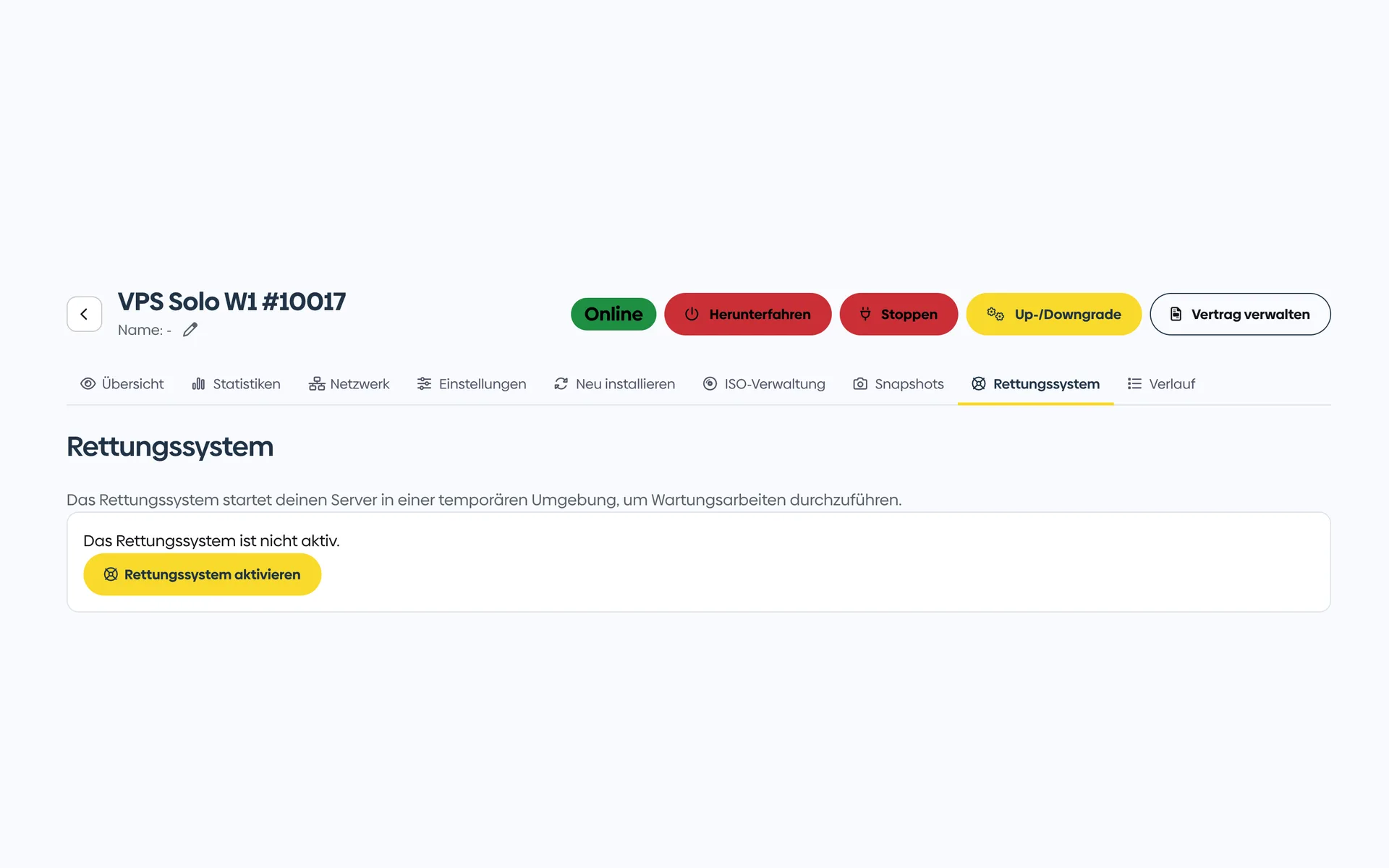
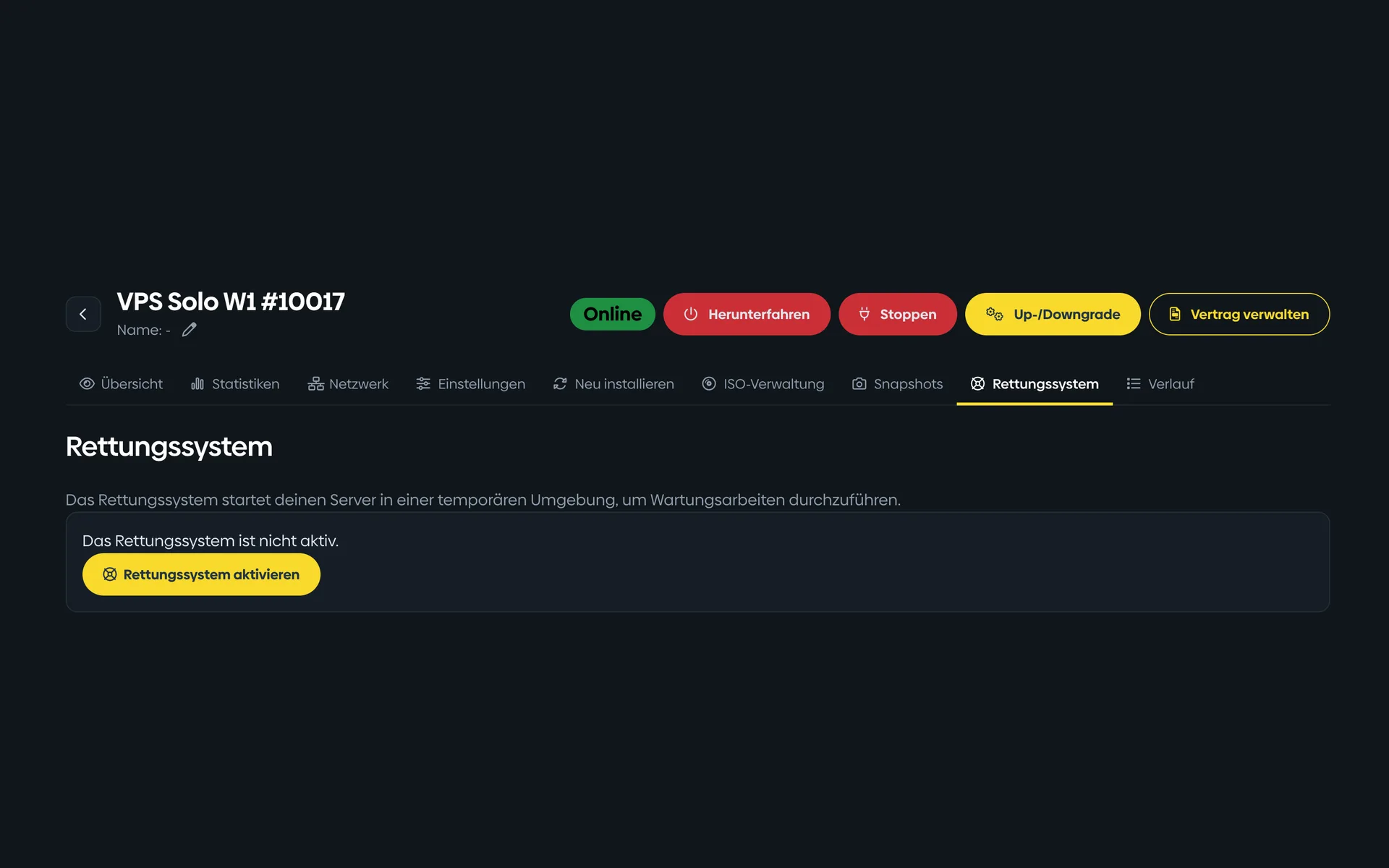
13 of 13
If the server no longer starts, you boot a small Linux, mount your disks, and get to your data. You activate the rescue system with one click.
Snapshots
Before a risky update, you create a snapshot of your server with one click. If something goes wrong, you reset the system to exactly that state, without reinstalling.
A snapshot is not a backup outside your server: it sits on the same storage. For a separate backup, you can add Cloud Backup or use your own backup solution.
Distributions & images
6 Linux distributions are installed with one click. Plus BSD, rescue and special-purpose systems, Windows Server as an image option and your own images.
Optional add-on
If you prefer to manage your server through an interface rather than the command line, simply add Plesk. The editions differ in the number of domains and the range of features.
| License | Domains | Features | incl. VAT / month |
|---|---|---|---|
| Plesk Web Admin Edition | 10 | WP Toolkit SE · Sitejet Builder | €12.99 |
| Plesk Web Pro Edition | 30 | WP Toolkit · Sitejet Builder · Account management | €22.99 |
| Plesk Web Host Edition | unlimited | WP Toolkit · Sitejet Builder · Reseller management | €46.99 |
Expand storage
Local Block Storage adds a local NVMe disk to your VPS. Choose its size in 20 GB increments when ordering and mount it in your operating system. This extends your server storage. Your separate Cloud Storage remains the place for backup copies.
Do you mainly need a lot of storage at a low price per terabyte? Then a Storage Server is the right choice.
Expand performance
If your plan no longer has enough memory or computing power, you can add both individually at any time, without changing plans and without reinstalling.
Cloud VLAN connects your VPS and Root Servers through a private network. Additional IPv4 addresses give individual services their own public address. Order either during checkout or later in your customer area.
DDoS protection
Suspicious traffic is filtered in the network to help protect your server against DDoS attacks. Protection is always active and included with every plan.
hostworld.de Cloud Backup · Optional for your server
Cloud Backup combines backup software and its own backup storage in a separate, paid package. Install the software on your VPS and choose what to back up and when. The software then runs your backups according to that schedule.
From €7.99 / month · Monthly contract
Choose Cloud BackupYour VPS still includes 100 GB of free Cloud Storage independently of this package. Use your own backup software with that storage.
Plan comparison
| Feature | VPS Solo | VPS Plus | Most popularVPS Pro | VPS Max | VPS Ultra |
|---|---|---|---|---|---|
| CPU capacity | Shared | Shared | Shared | Shared | Shared |
| vCPU | 2 | 4 | 8 | 12 | 16 |
| RAM (DDR5 ECC) | 4 GB | 8 GB | 16 GB | 32 GB | 64 GB |
| NVMe storage | 60 GB | 120 GB | 240 GB | 480 GB | 720 GB |
| Included Cloud Storage | 100 GB | 100 GB | 100 GB | 100 GB | 100 GB |
| Availability | Order now | Order now | Order now | Order now | Order now |
| KVM virtualization | ✓ | ✓ | ✓ | ✓ | ✓ |
| Full root access | ✓ | ✓ | ✓ | ✓ | ✓ |
| Snapshots | ✓ | ✓ | ✓ | ✓ | ✓ |
| VNC console | ✓ | ✓ | ✓ | ✓ | ✓ |
| Rescue system | ✓ | ✓ | ✓ | ✓ | ✓ |
| One-click distributions | 6 Linux distributions | 6 Linux distributions | 6 Linux distributions | 6 Linux distributions | 6 Linux distributions |
| Additional images | FreeBSD, rescue systems, Windows Server as image options | FreeBSD, rescue systems, Windows Server as image options | FreeBSD, rescue systems, Windows Server as image options | FreeBSD, rescue systems, Windows Server as image options | FreeBSD, rescue systems, Windows Server as image options |
| Custom images | iso, qcow, qcow2, raw (upload via browser or cURL) | iso, qcow, qcow2, raw (upload via browser or cURL) | iso, qcow, qcow2, raw (upload via browser or cURL) | iso, qcow, qcow2, raw (upload via browser or cURL) | iso, qcow, qcow2, raw (upload via browser or cURL) |
| VNC/rescue access for custom images | ✓ | ✓ | ✓ | ✓ | ✓ |
| Network connection | 1 Gbit/s | 2.5 Gbit/s | 2.5 Gbit/s | 2.5 Gbit/s | 2.5 Gbit/s |
| Traffic | unmetered (fair use) | unmetered (fair use) | unmetered (fair use) | unmetered (fair use) | unmetered (fair use) |
| IPv4 / IPv6 | 1× IPv4 + /64 IPv6 | 1× IPv4 + /64 IPv6 | 1× IPv4 + /64 IPv6 | 1× IPv4 + /64 IPv6 | 1× IPv4 + /64 IPv6 |
| DDoS protection | ✓ | ✓ | ✓ | ✓ | ✓ |
| Additional IPv4 addresses | Up to 10 as an add-on | Up to 10 as an add-on | Up to 10 as an add-on | Up to 10 as an add-on | Up to 10 as an add-on |
| Cloud VLAN | 100 to 2,500 Mbit/s as an add-on | 100 to 2,500 Mbit/s as an add-on | 100 to 2,500 Mbit/s as an add-on | 100 to 2,500 Mbit/s as an add-on | 100 to 2,500 Mbit/s as an add-on |
| Optional Cloud Backup | add-on from €7.99 / month | add-on from €7.99 / month | add-on from €7.99 / month | add-on from €7.99 / month | add-on from €7.99 / month |
| Plesk license available as add-on | optional add-on | optional add-on | optional add-on | optional add-on | optional add-on |
| Local Block Storage available as add-on | optional add-on | optional add-on | optional add-on | optional add-on | optional add-on |
| Personal support | By email and phone | By email and phone | By email and phone | By email and phone | By email and phone |
| Server location | Germany | Germany | Germany | Germany | Germany |
| DPA (data processing agreement) | Create it yourself in the Customer Menu | Create it yourself in the Customer Menu | Create it yourself in the Customer Menu | Create it yourself in the Customer Menu | Create it yourself in the Customer Menu |
| Price per month | €5.99 | €9.99 | €17.99 | €29.99 | €49.99 |
| with a 12-month term | |||||
| with a 24-month term | |||||
| Setup fee | none | none | none | none | none |
| Notice period | 7 days | 7 days | 7 days | 7 days | 7 days |
Included with every plan
Customer experiences
4.9 out of 525 reviews96 % would recommend
„Der von mir bei Hostworld angemietete VPS-Server ist mit seiner Leistung extrem schnell, Das merkt man sofort bei jedem Download. Der Support ist ebenso schnell. Selbst zu abendlichen Zeiten wurde mir geholfen. Preislich habe ich nichts vergleichbares gefunden.“
„Bis jetzt bin ich sehr zufrieden, die Performance finde ich sehr gut. Ich habe bisher einen älteren Root-Server gemietet, der vServer schlägt den Root-Server hinsichtlich Geschwindigkeit und Performance. Bislang habe ich testweise die Homepages migriert, ich werde nach und nach die weiteren Services umziehen.“
„Ich nutze bei Hostworld.de einen VPS mit Proxmox und Nested Virtualization und hatte kürzlich die Situation, dass ich auf ein neueres System umgezogen bin – dort war Nested KVM aus technischen Gründen nicht mehr möglich. Der Support hat mir das sehr schnell, transparent und verständlich erklärt und mir dann aus reiner Kulanz eine perfekte Lösung angeboten: Die Umstellung wurde innerhalb kurzer Zeit sauber umgesetzt, ohne lange Ausfälle oder Chaos.“
More reviews on HOSTtest.de.
FAQ
Continuously committed CPU capacity for shops, databases and applications. With NVMe and full root access.
Plenty of space for your backups, archives and large amounts of data.
You focus on your application, we take care of the server. Set up, monitored and kept up to date by us.
Configure your virtual server in a few minutes, or let us advise you personally.