Domains · DynDNS

DynDNS, free with every domain

Reach your home from anywhere. Does your provider regularly assign your connection a new public IP address? DynDNS automatically keeps your domain, or a subdomain of your domain, pointed at it. NAS, home server or camera stay reachable under the same name.

Included free with every domainAny number of subdomainsIPv4 and IPv6

What DynDNS does

You remember one name, nothing more

Your router reports every new public IP address to us, and we write it into the matching DNS record. You remember a name instead of a string of numbers that changes anyway.

  • Included free with every domain
  • Any number of subdomains per domain
  • Usable for IPv4 and IPv6

What customers use it for

Your NAS. Your server. Your camera

Your devices that run on your internet connection without a fixed IP address and should be reachable from outside get a fixed name.

NAS and file storage

Access a Synology, QNAP or self-built NAS without knowing the current IP address.

Server in your home network

A small server for Nextcloud, Home Assistant or a test environment stays reachable under the same name.

VPN to your home

WireGuard and OpenVPN need a fixed target. The DynDNS name provides it, even when the connection changes its address.

Cameras and smart home

Security cameras, weather stations and controllers report under a name you can remember.

Remote maintenance

You look after the connections of customers or relatives? One name per site saves asking for the IP address.

Connections without a fixed IP

Most private connections regularly get a new public address. DynDNS makes up for that.

Setup

How to set up DynDNS

  1. 1
    Open it in the Customer Menu

    Log in to the Customer Menu and open your domain. Switch to the DynDNS tab.

  2. 2
    Create a connection

    Assign a unique name for the subdomain (e.g. nas for nas.your-domain.de) and set a password for the later update of the IP address.

  3. 3
    Enter the update address

    Copy the address shown in the Customer Menu into the DynDNS settings of your router or device.

  4. 4
    Check reachability

    Your router or device performs the first update. After that, you reach your device under the new name.

Everything in your own hands

What you can do yourself, without waiting for anyone

Create DynDNS, copy the update address, follow the reports, check DNS records. Four screenshots from a test account.
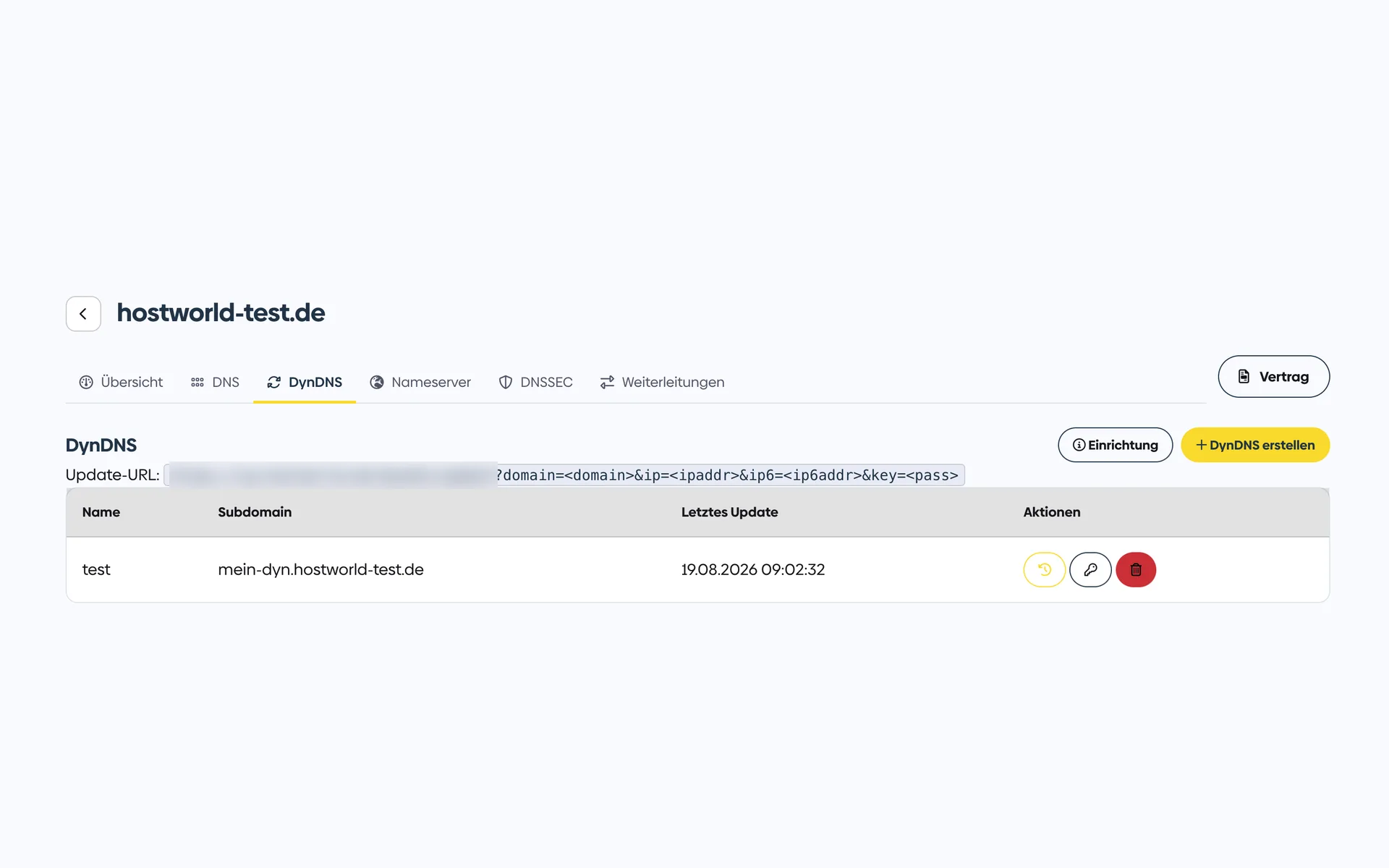
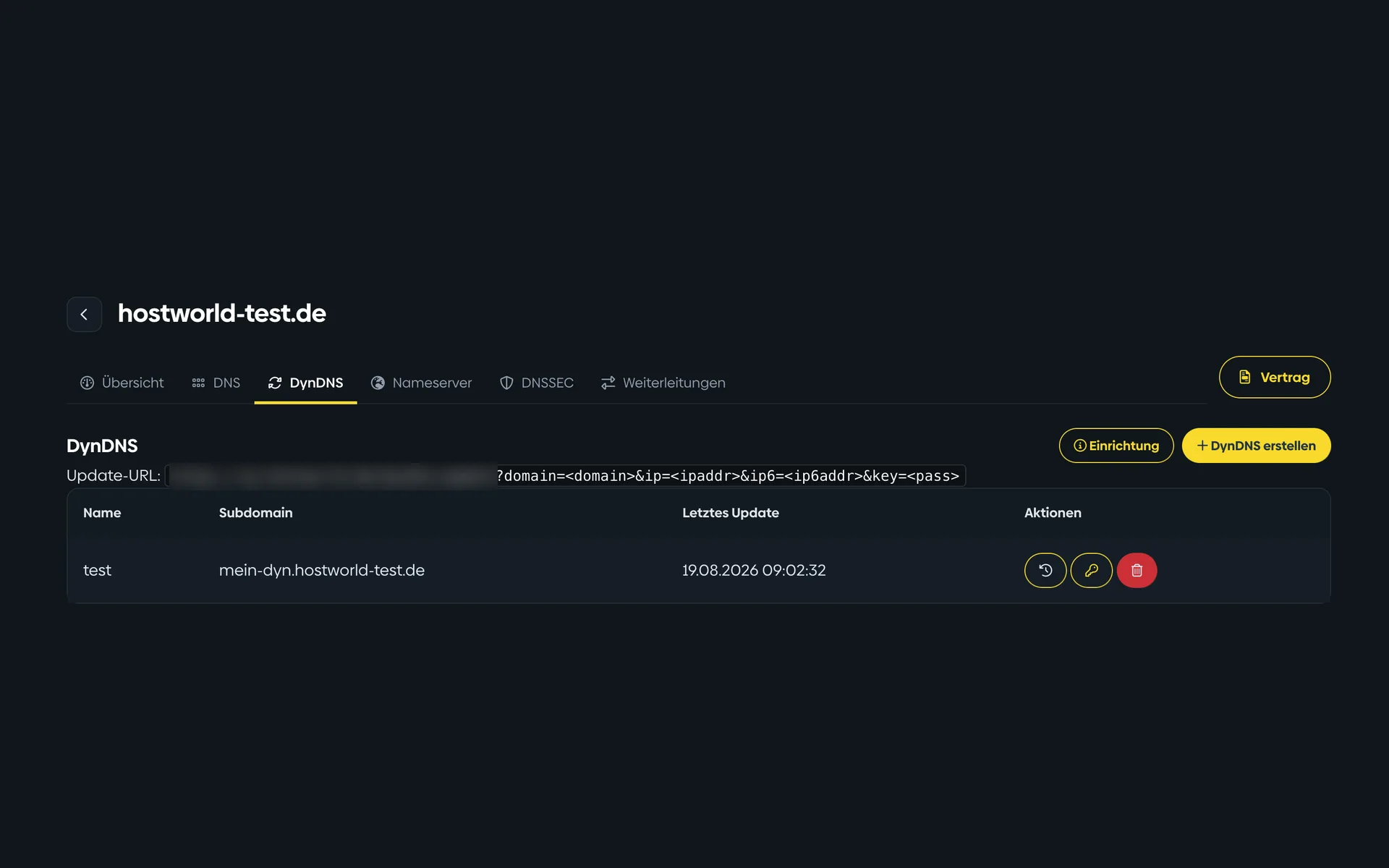
  • DynDNS management in the Customer Menu with the update URL, a created subdomain, and the time of the last reportDynDNS management in the Customer Menu with the update URL, a created subdomain, and the time of the last report

    1 of 4

    DynDNS for changing IP addresses

    Any number of names for NAS, camera, or home server, for IPv4 and IPv6. The “Letztes Update” (last update) column shows you when your router last reported an IP update to us.
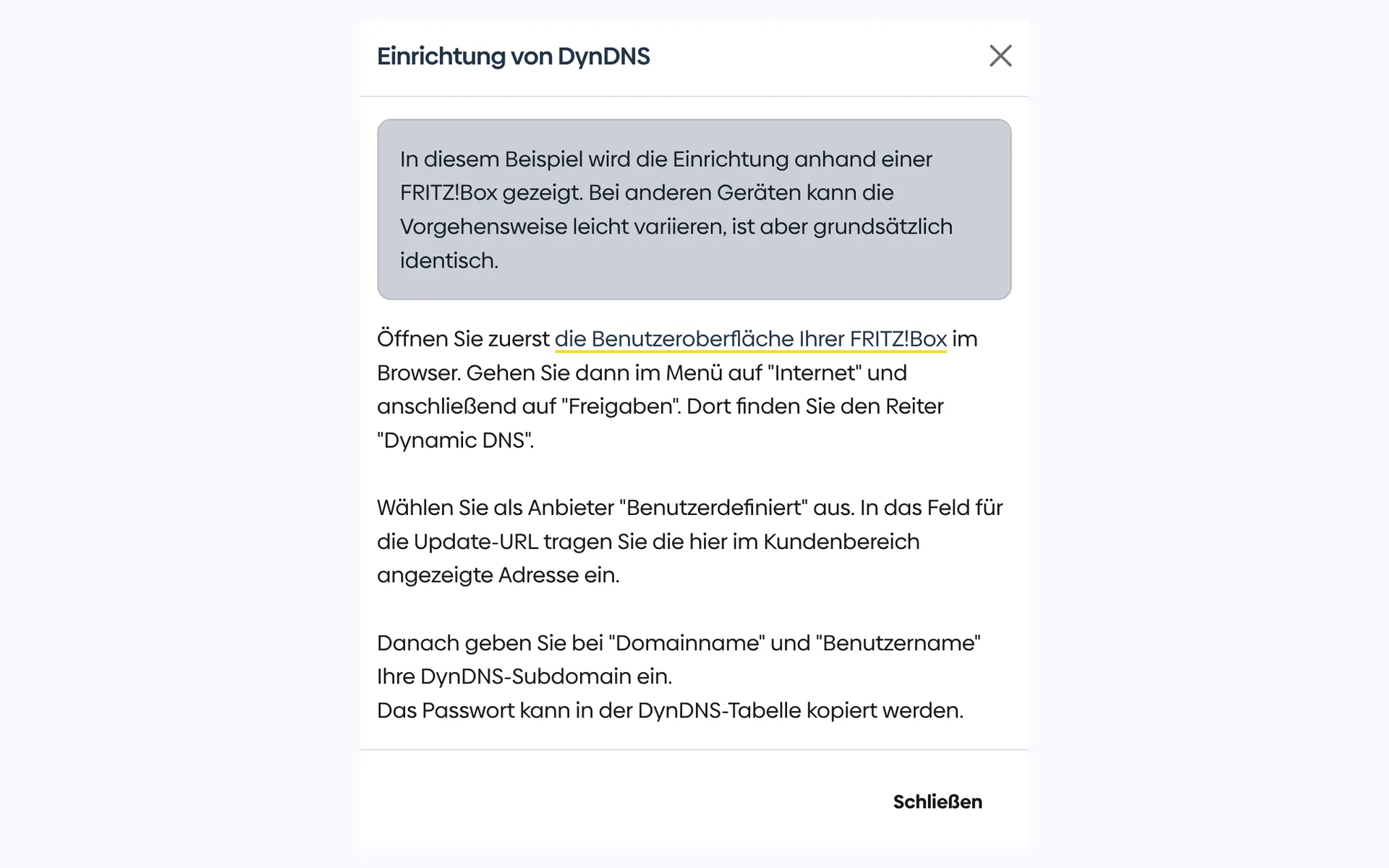
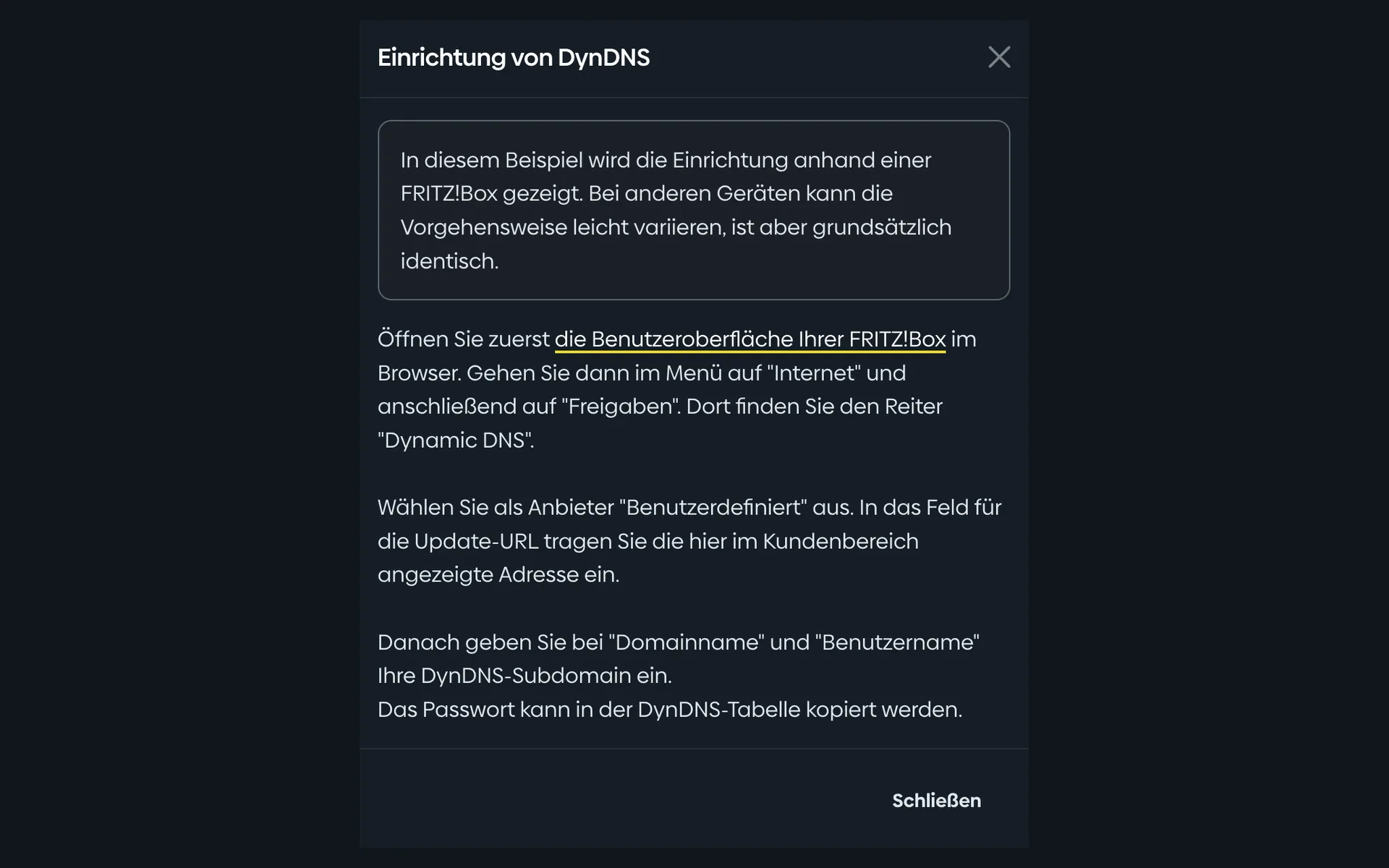
  • Setup note for DynDNS in the Customer Menu with step-by-step instructions for the FRITZ!BoxSetup note for DynDNS in the Customer Menu with step-by-step instructions for the FRITZ!Box

    2 of 4

    Setup step by step

    The instructions show you, using the FRITZ!Box as an example, how to set up DynDNS. Copy the update URL and password, enter them in your router, done.
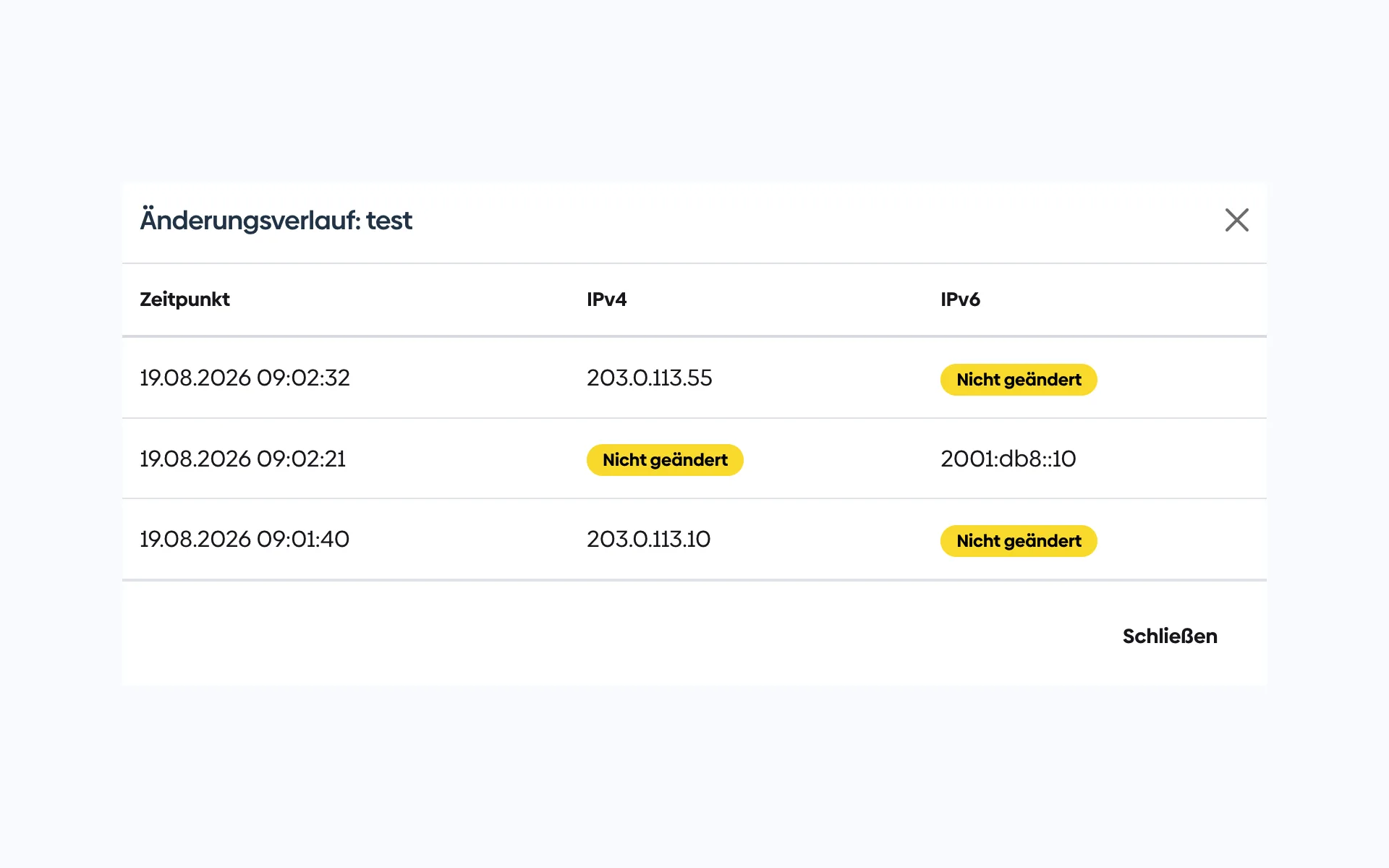
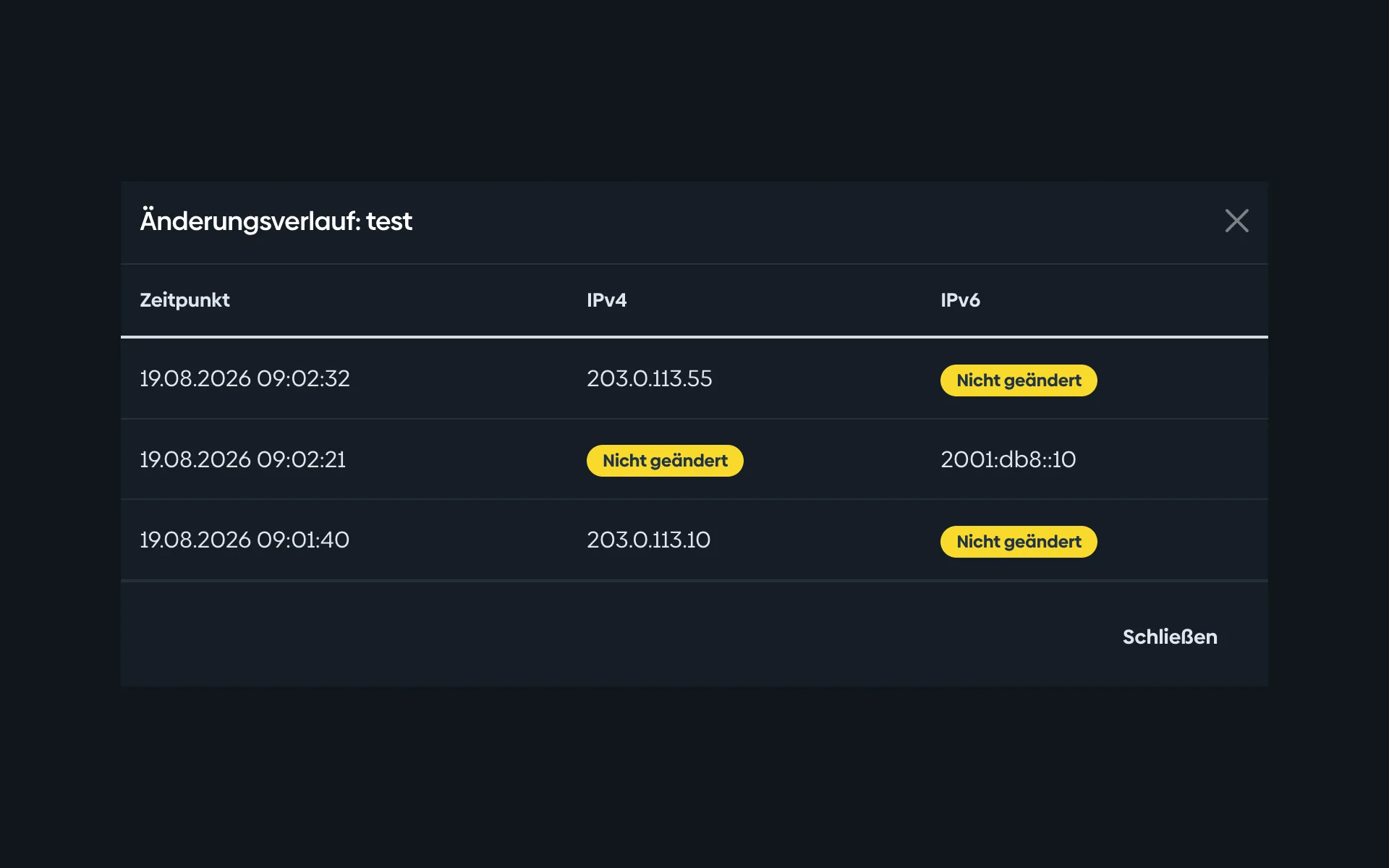
  • Change history of a DynDNS connection in the Customer Menu with the time, IPv4 address, and IPv6 address for each reportChange history of a DynDNS connection in the Customer Menu with the time, IPv4 address, and IPv6 address for each report

    3 of 4

    Traceable: what was reported, and when

    The history shows every report with its time and address. That way you can see right away whether your router is doing its job.
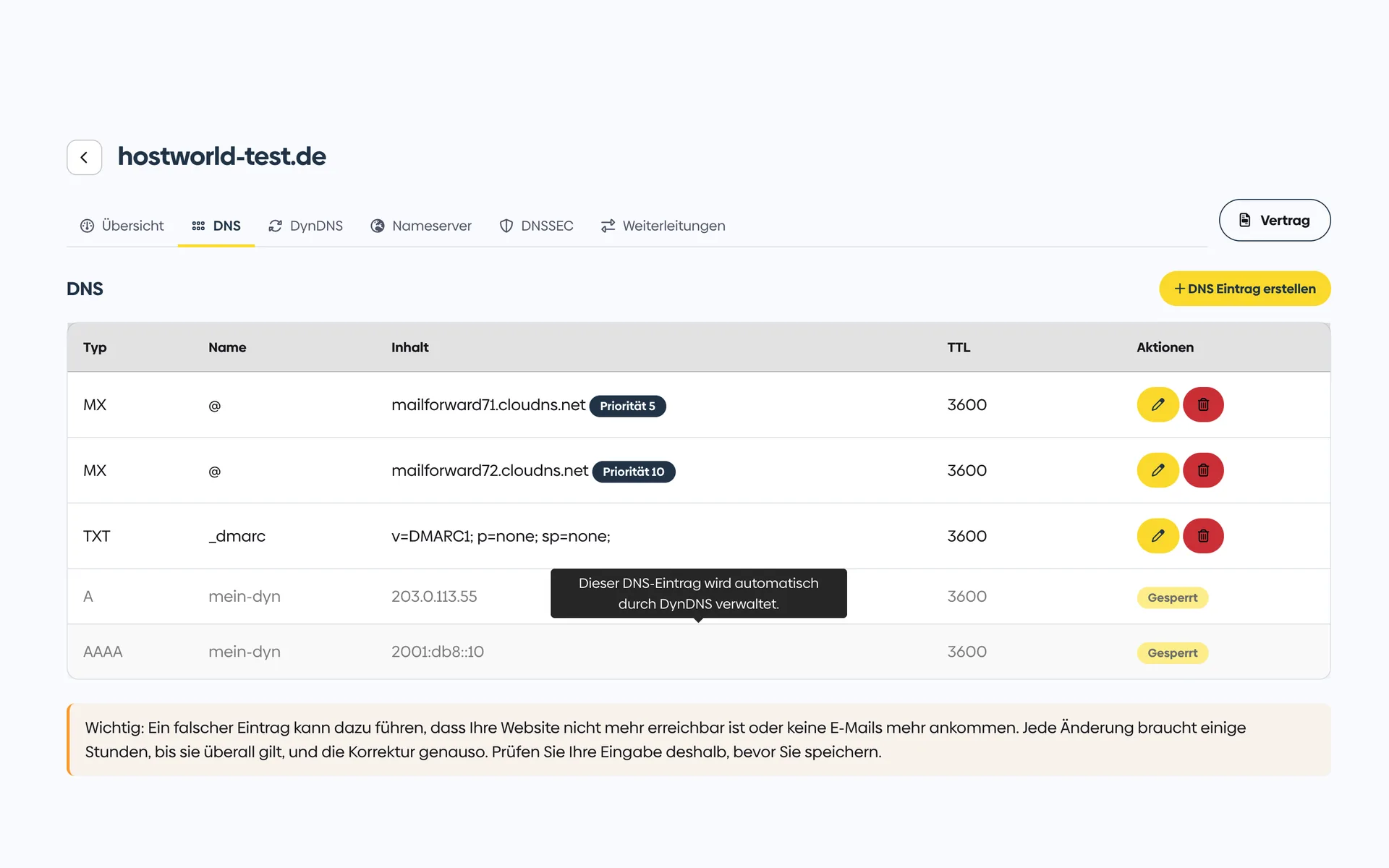
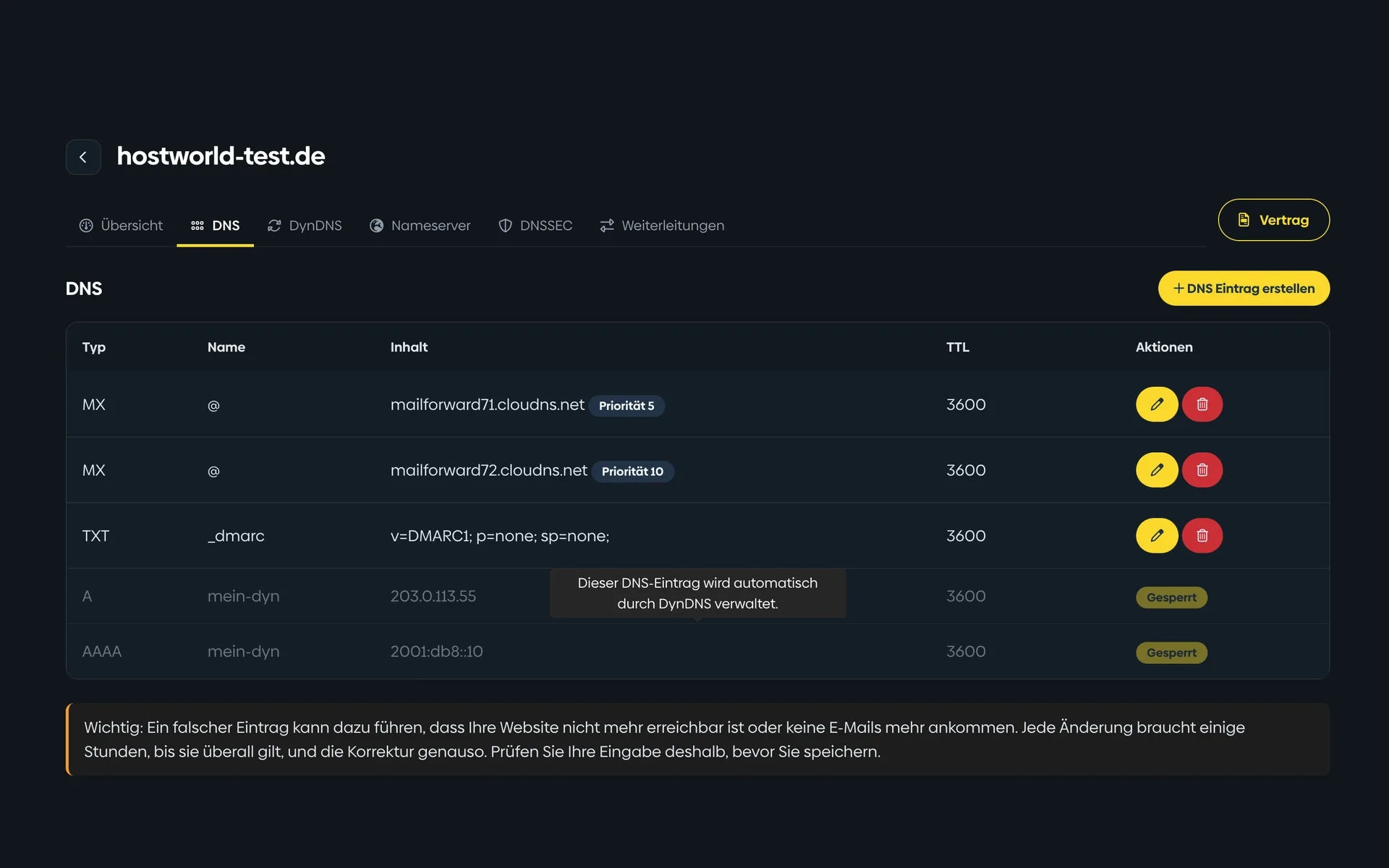
  • DNS management in the Customer Menu with a table of MX, TXT, A, and AAAA records including their validity periodDNS management in the Customer Menu with a table of MX, TXT, A, and AAAA records including their validity period

    4 of 4

    Manage DNS records yourself

    Create, change, delete: your zone is yours, with no request to support. Records that DynDNS maintains automatically are locked against accidental changes.

Routers and update clients

Your router does the work

We do not require a specific device. You find your personal update address in the Customer Menu under your domain in the DynDNS tab. Your router or update program then calls it on its own as soon as your IP address changes.

  • FRITZ!Box: “Internet” › “Freigaben” (sharing) › “DynDNS”, provider “Benutzerdefiniert” (user-defined)
  • OPNsense and pfSense: as a separate service in the Dynamic DNS section
  • UniFi: as a custom DynDNS provider
  • ddclient and inadyn: for Linux servers, NAS devices and the Raspberry Pi
  • Any device that can call a URL, if need be a cron job with curl

FAQ

Frequently asked questions about DynDNS

What does DynDNS cost?
The service is included with every domain. There are no extra costs for you.
Do I need a domain with you for this?
Yes. DynDNS runs on your domain at hostworld.de or on a subdomain of it. You can register the domain with us or transfer it to us from your current provider.
How many subdomains can I create?
As many as you need. For NAS, camera and router you can create separate names, each with its own connection.
Does it work with my FRITZ!Box?
Yes. Under “Internet” › “Freigaben” (sharing) › “DynDNS”, the FRITZ!Box offers a field for a custom update address. Enter the address from the Customer Menu there. The router replaces the placeholders in angle brackets itself.
And if my router cannot do DynDNS?
Then a small program on a device in your network takes over the reporting, such as ddclient or inadyn. Calling the update address via a cron job is enough too.
Do you support IPv6?
Yes. Besides the field for the IPv4 address, the update address also has one for the IPv6 address. On a dual-stack connection you report both.
How quickly does a change take effect?
We change the record immediately after receiving the report. How quickly the change arrives worldwide depends on the time-to-live of the DNS record and on caching by internet providers.
Where do I find the update address and my password?
In the Customer Menu under your domain in the DynDNS tab. There you create the connections and see when the last report came in.

No domain with us yet?

DynDNS comes with every domain at hostworld.de, at no extra charge and without an additional contract. Check the domain you want, register it, set up DynDNS.