VPS SoloW1
For one assistant with smaller tasks.
- 2 vCPU
- 4 GB RAM
- 100 GB NVMe
- Full root access
- Snapshots included
No setup fee
Self-hosted AI applications
Let your assistant gather information, prepare reports and handle recurring tasks. Once configured, your AI assistant stays reachable even when your own computer is switched off.
From €9.95 per month
Less routine work
OpenClaw connects an AI assistant to the tools and messaging apps you choose. Give it a task, such as gathering and summarising information on a topic. The assistant can use the tools you have authorised.
On your VPS, OpenClaw runs independently of your workstation. You choose the AI model and decide which data and services your assistant can access.
Recommended plans
VPS Solo is a sensible starting point for one assistant and smaller tasks. We recommend VPS Plus for more headroom when running browser tasks and parallel processes. VPS Max suits installations that need more resources.
Monthly term and payment, cancelable at short notice.
For one assistant with smaller tasks.
Our recommendation for browser tasks and parallel processes.
For larger installations that need more resources.
You are ordering a VPS to configure yourself. You handle application installation, updates and security. Access to your chosen AI provider and its usage charges are not included in the VPS price.
Features
Have information on a topic collected and summarised. Review the sources and use the results in your work.
Reach your configured assistant through services such as Telegram or Slack. Your workstation does not need to stay switched on.
Set up regular summaries or reminders. Your VPS remains available outside your working hours.
Connect the services you need. You decide which tools your assistant may use and which actions require confirmation.
Everything in your own hands
Reinstall your server, create snapshots or open the console: access VPS management directly from your Customer Menu.
1 of 7
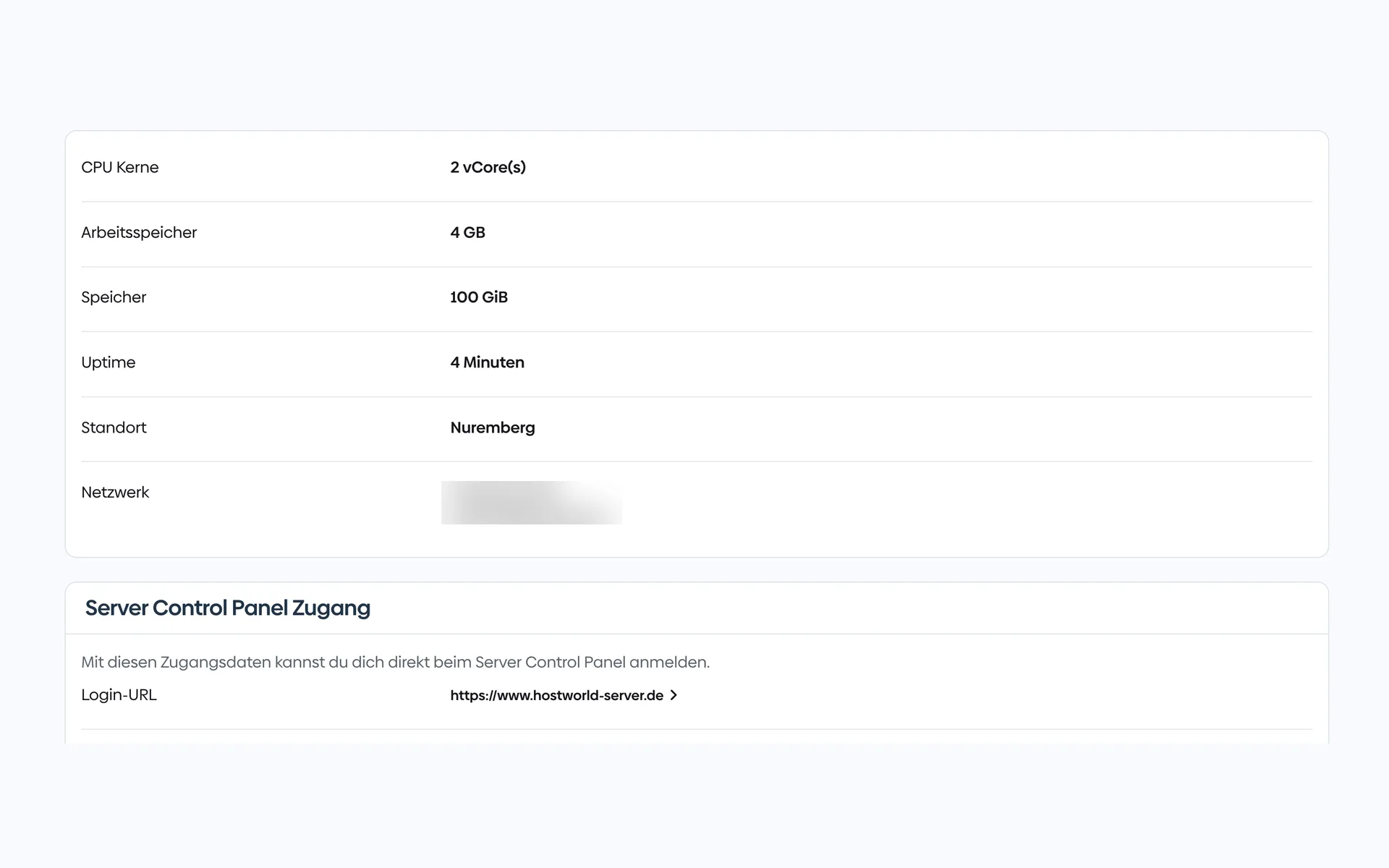
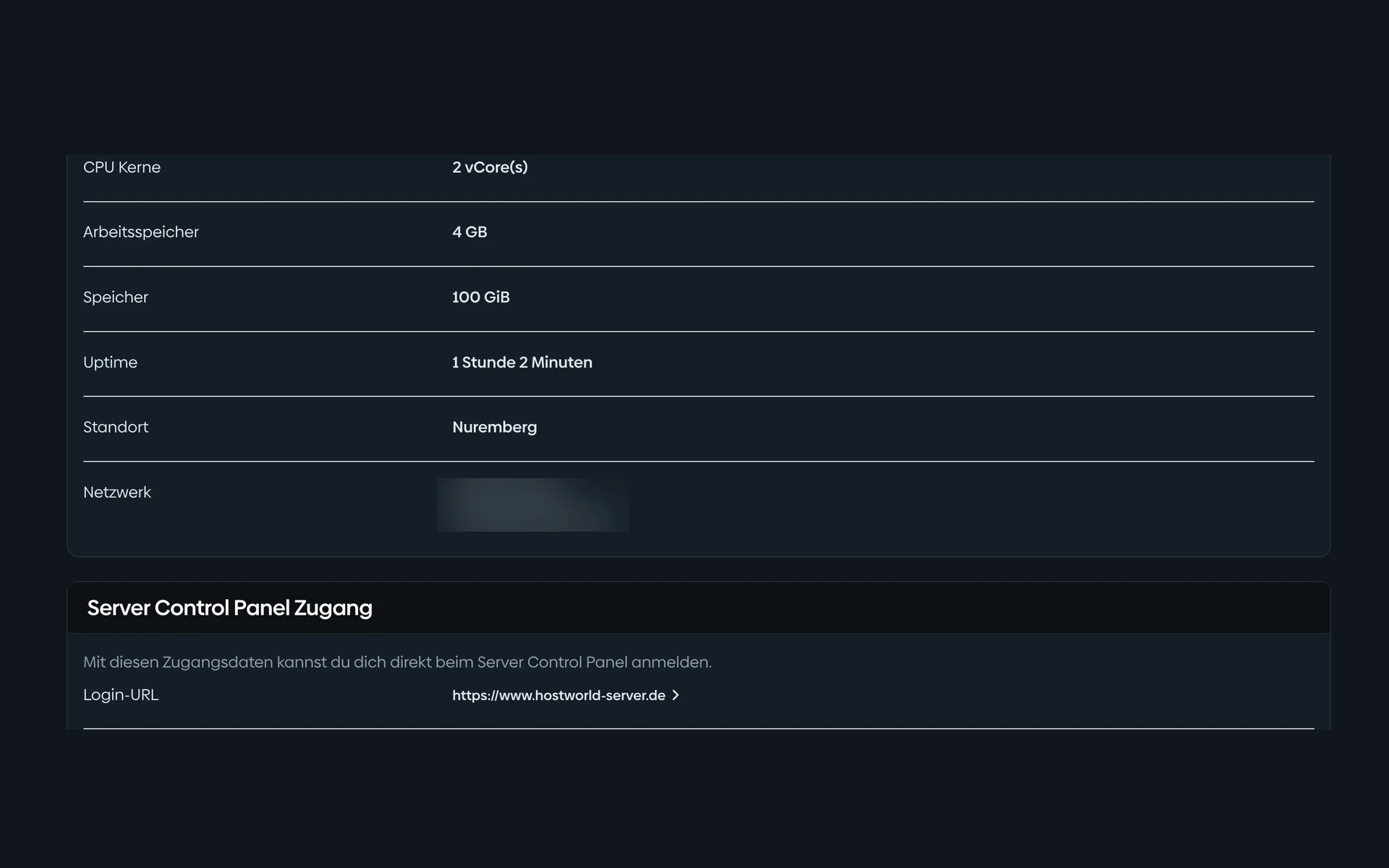
CPU, memory, storage, location, and your IP addresses are listed in the Customer Menu. From there, one click takes you to the Server Control Panel.
2 of 7
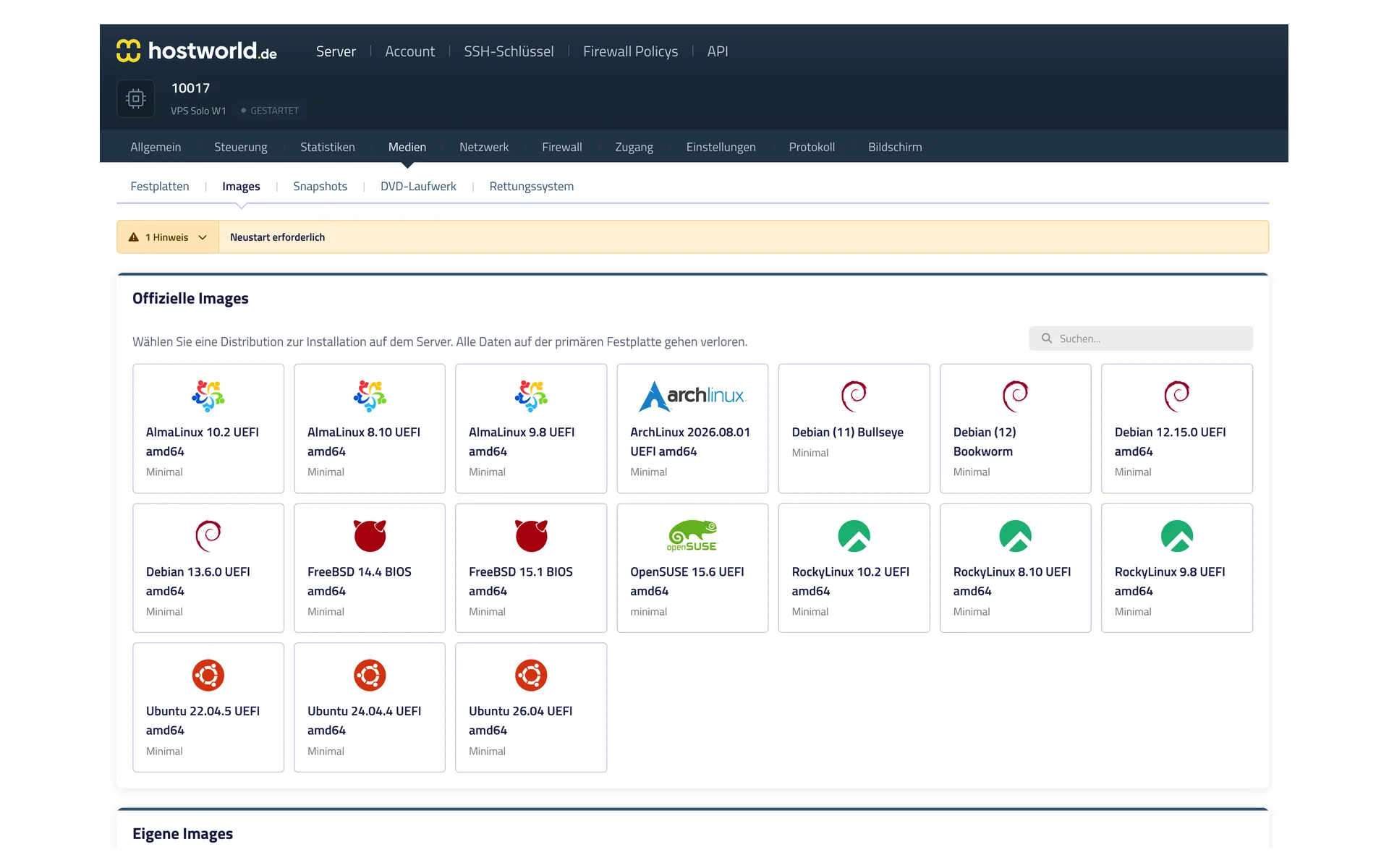
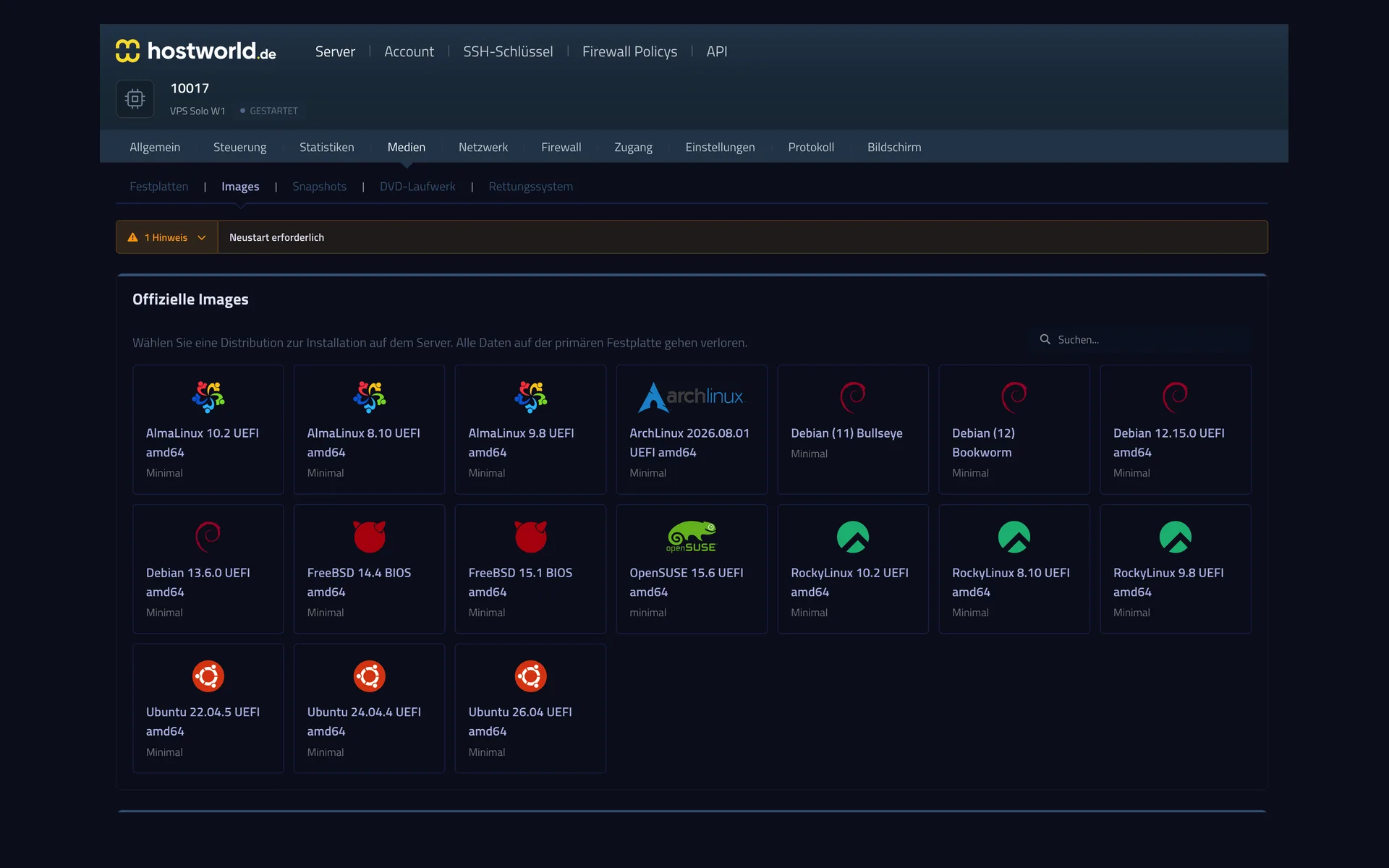
AlmaLinux, Arch, Debian, FreeBSD, OpenSUSE, Rocky, Ubuntu: you start the installation yourself, with no ticket and no waiting.
3 of 7
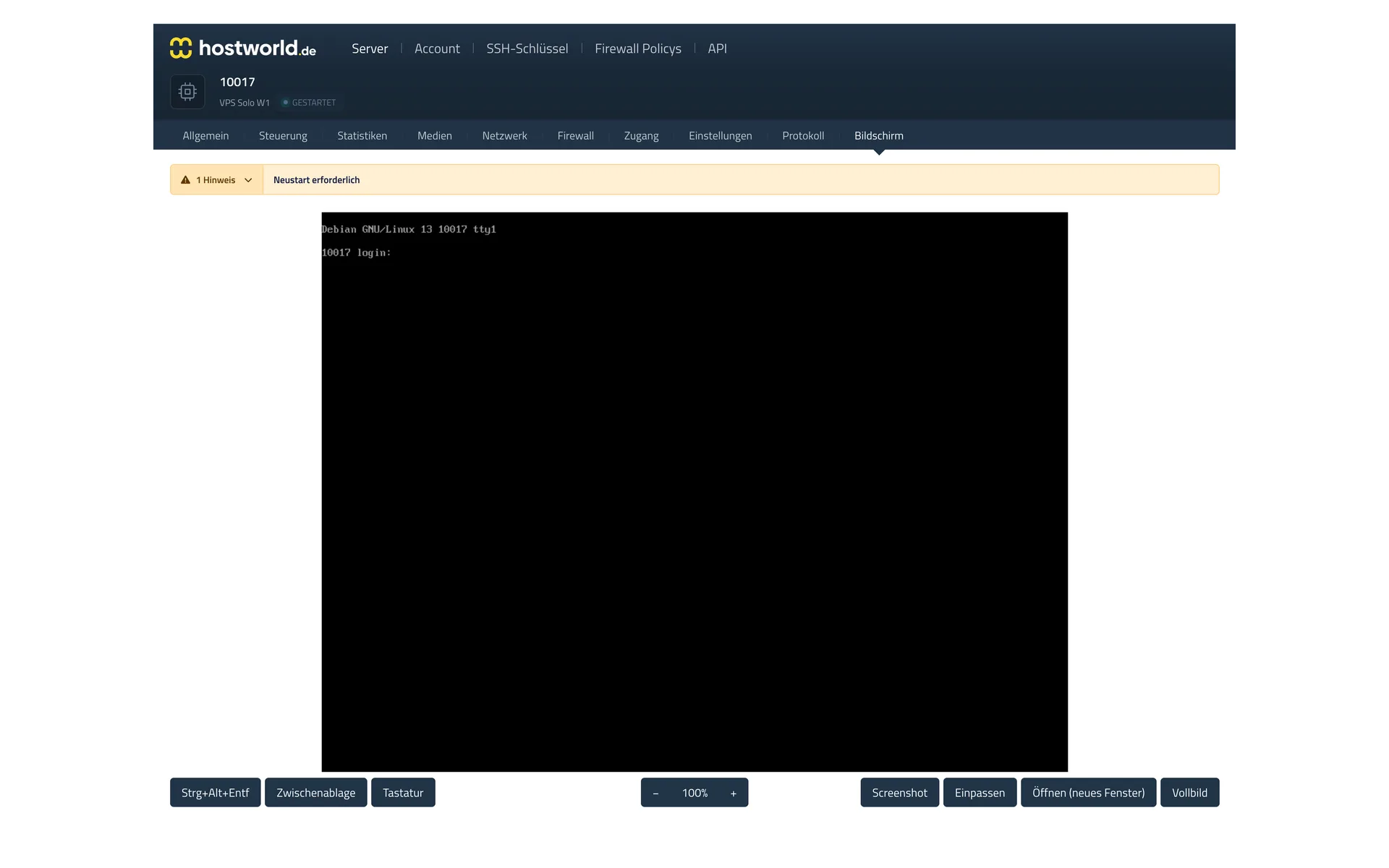
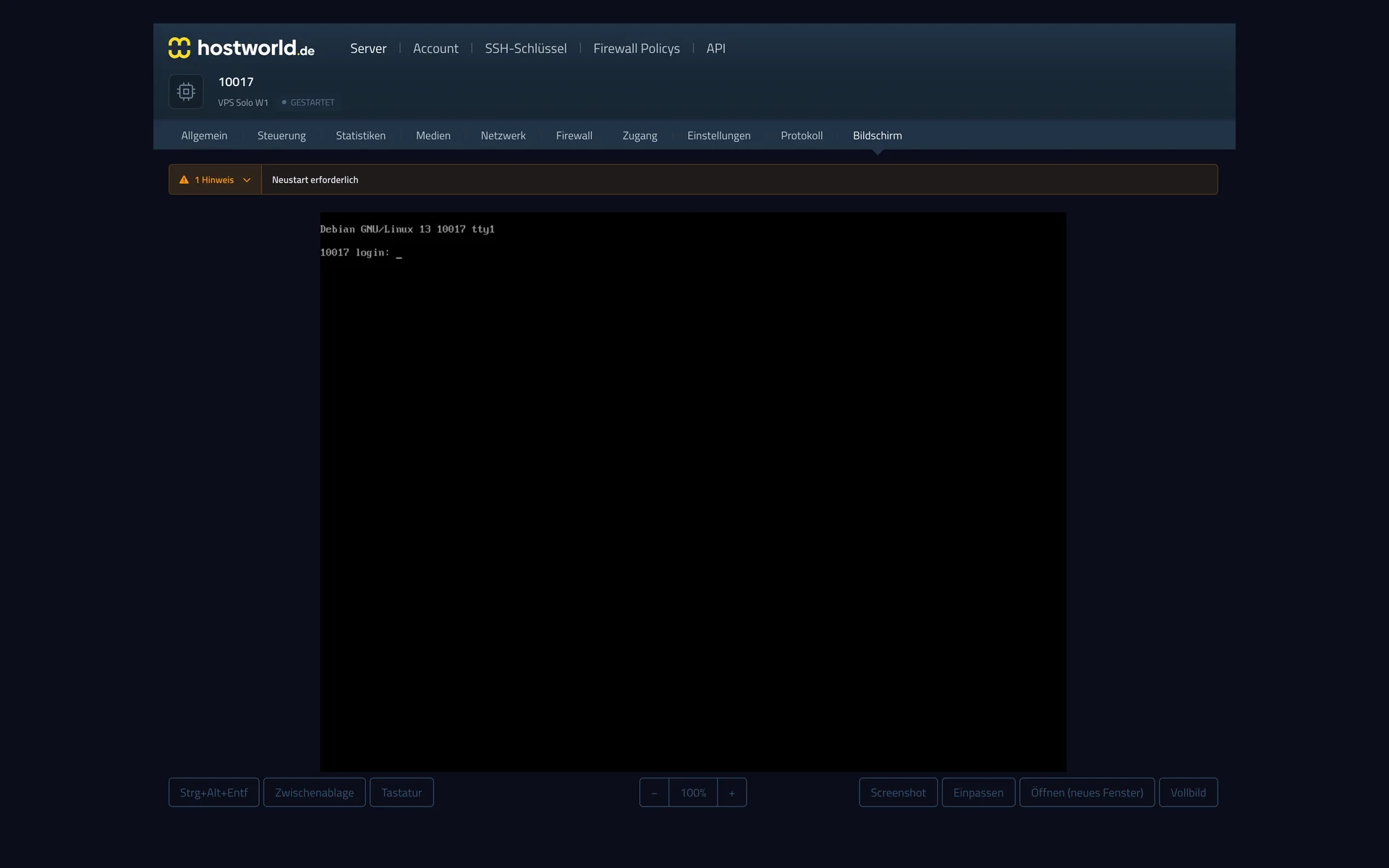
The VNC console shows you your server's screen right in the browser. That way you can reach your server even when it is not reachable over the internet.
4 of 7
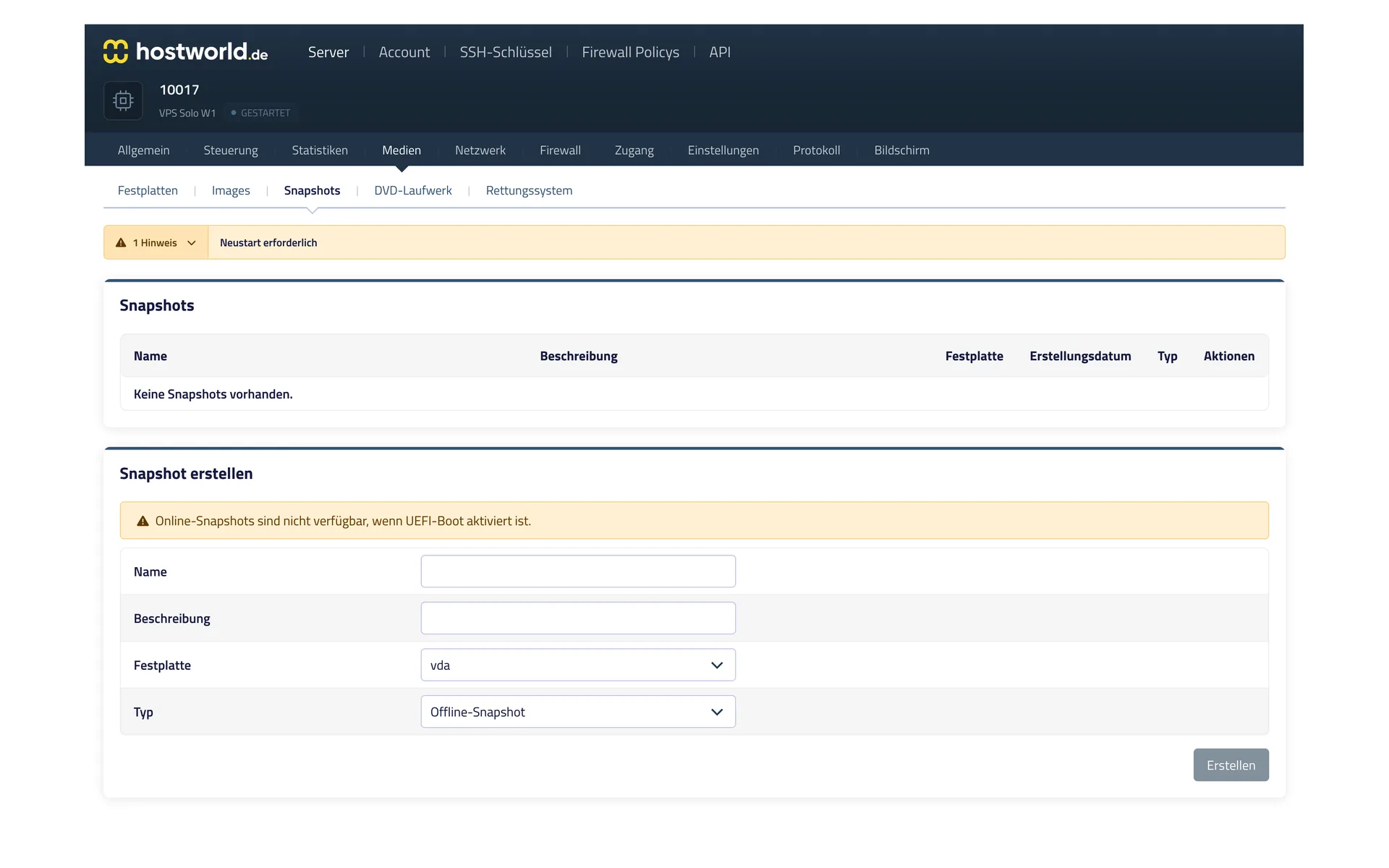
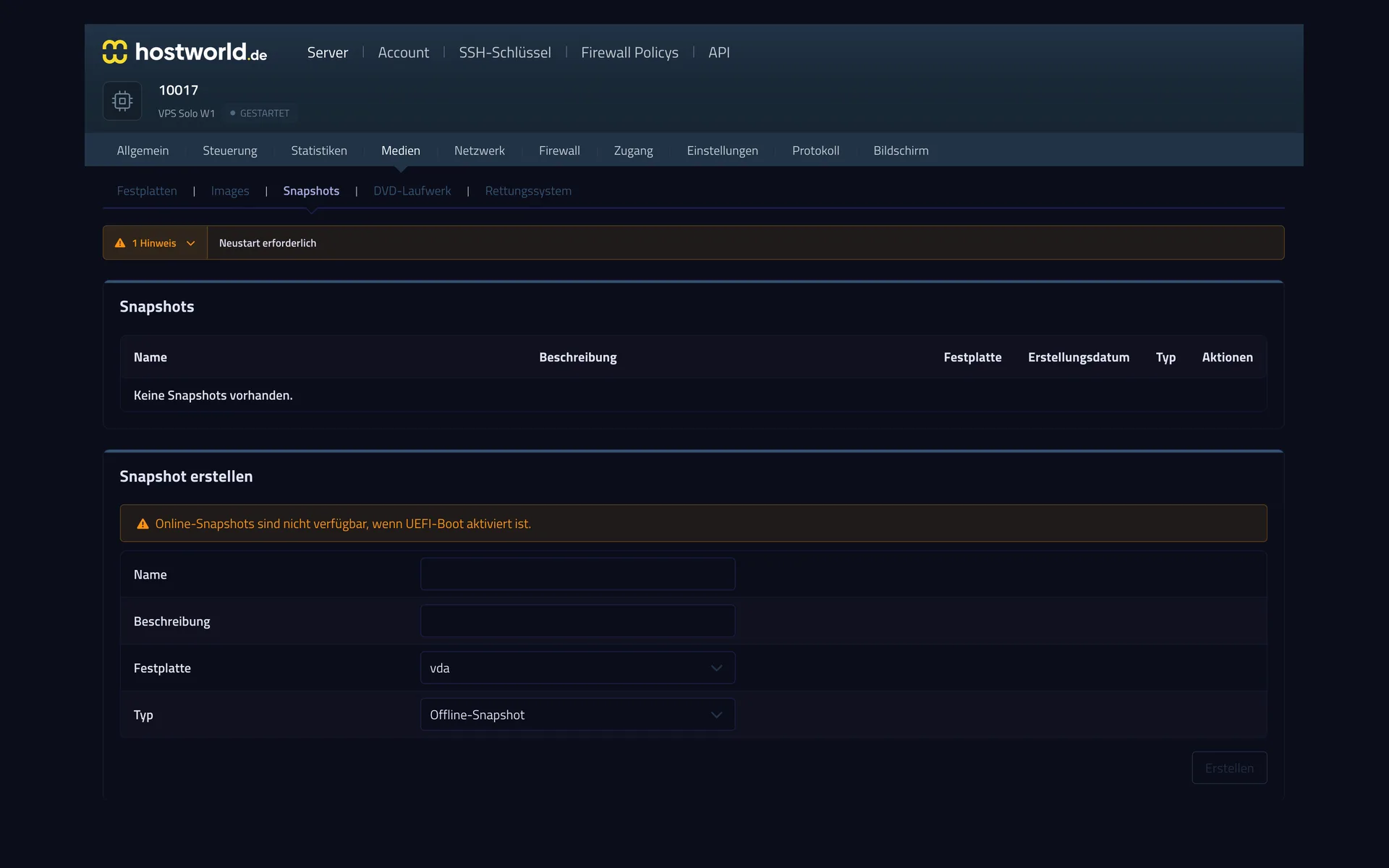
Before an update or a risky change, capture the state of the server with a snapshot. If something goes wrong, you go back to it.
5 of 7
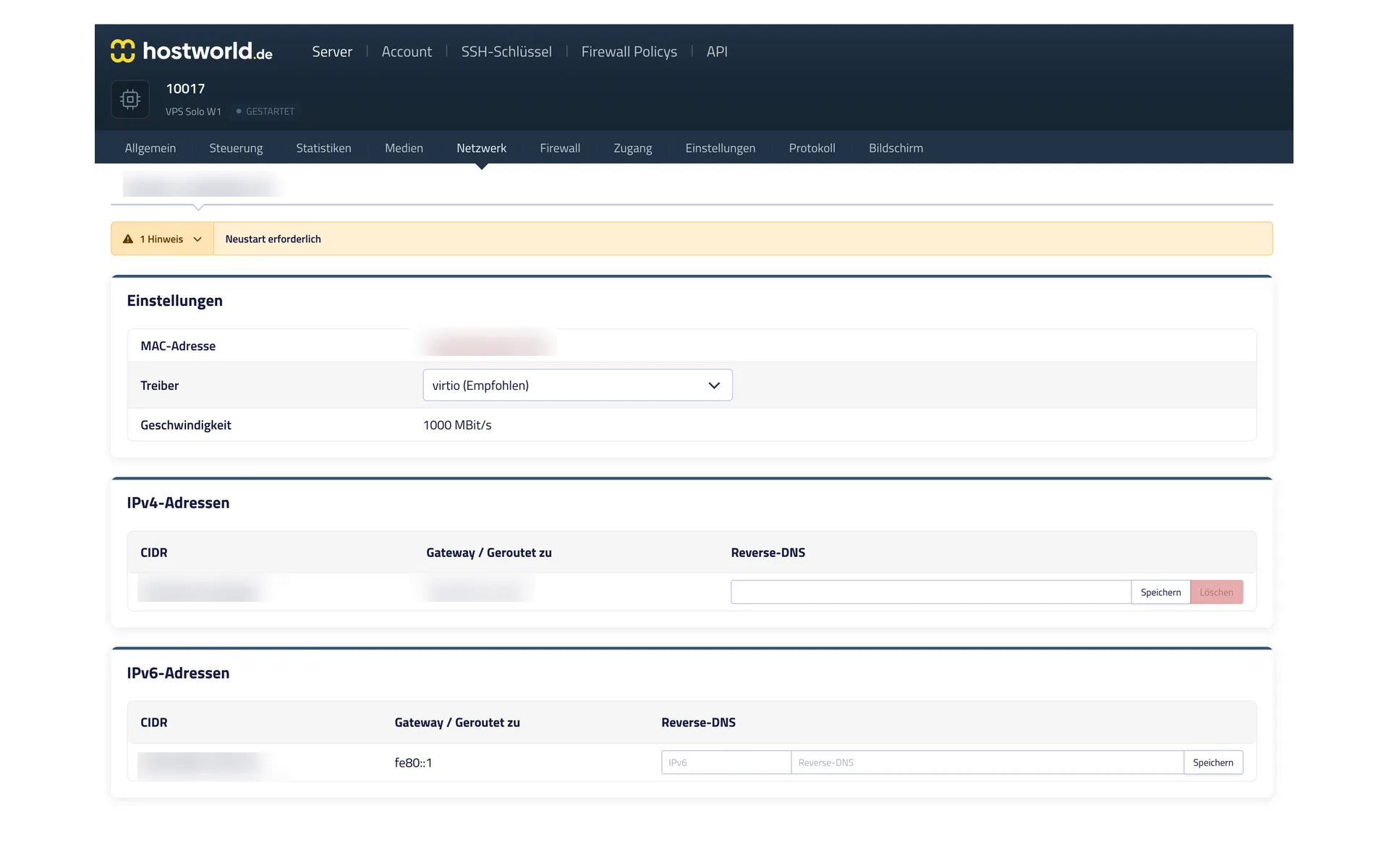
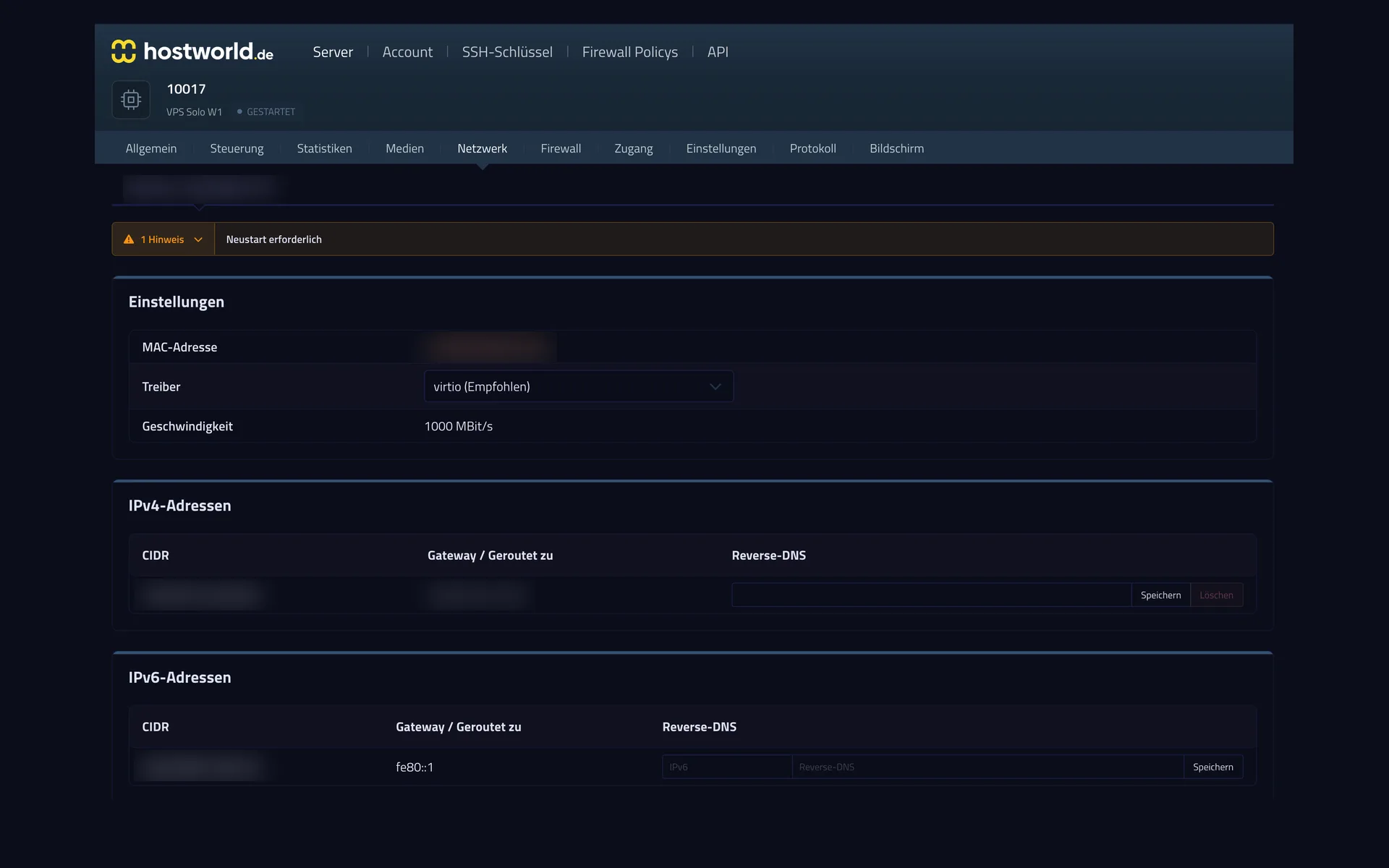
Every server comes with an IPv4 address and its own IPv6 network. You set the reverse entry yourself, which is often decisive for sending mail.
6 of 7
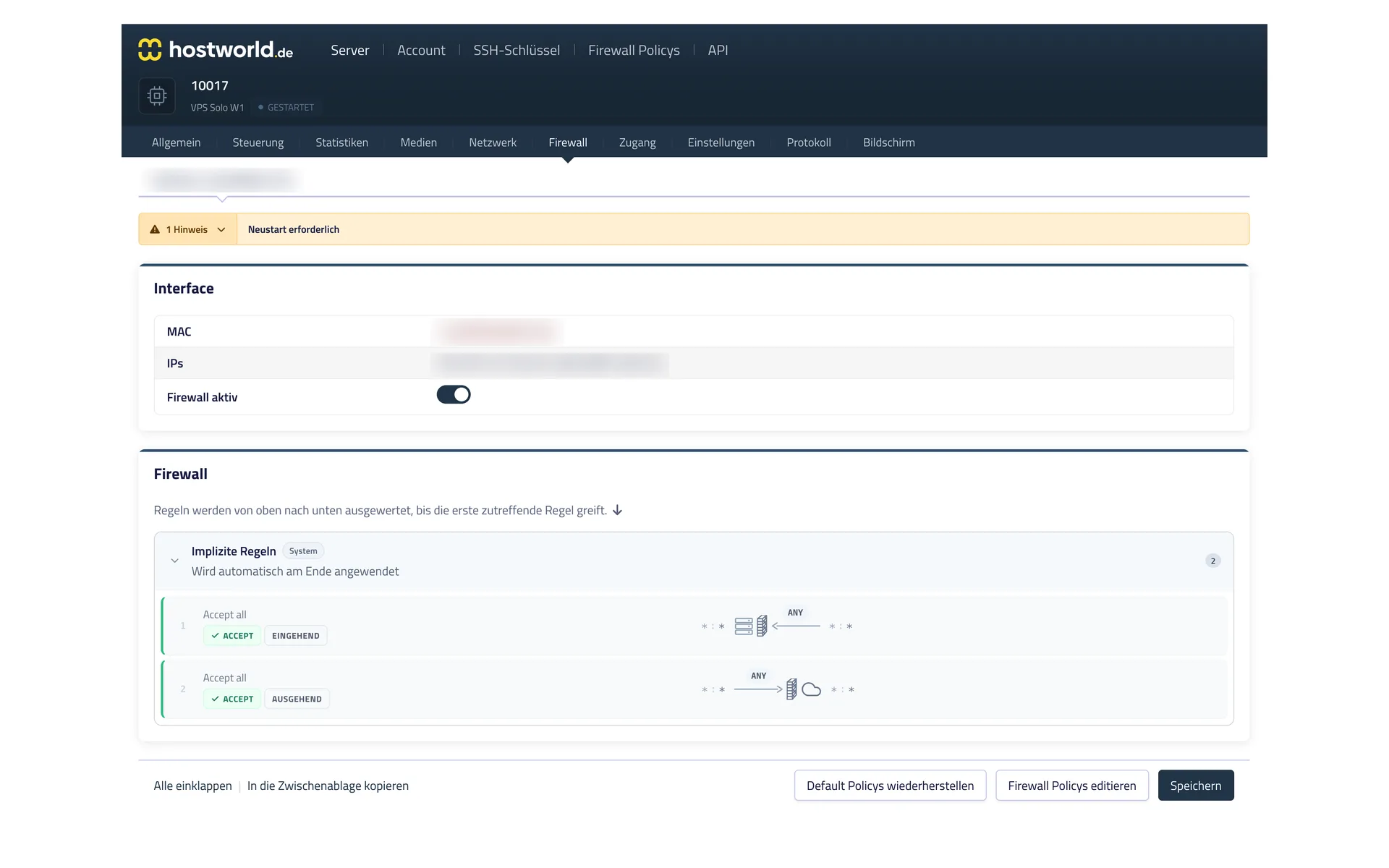
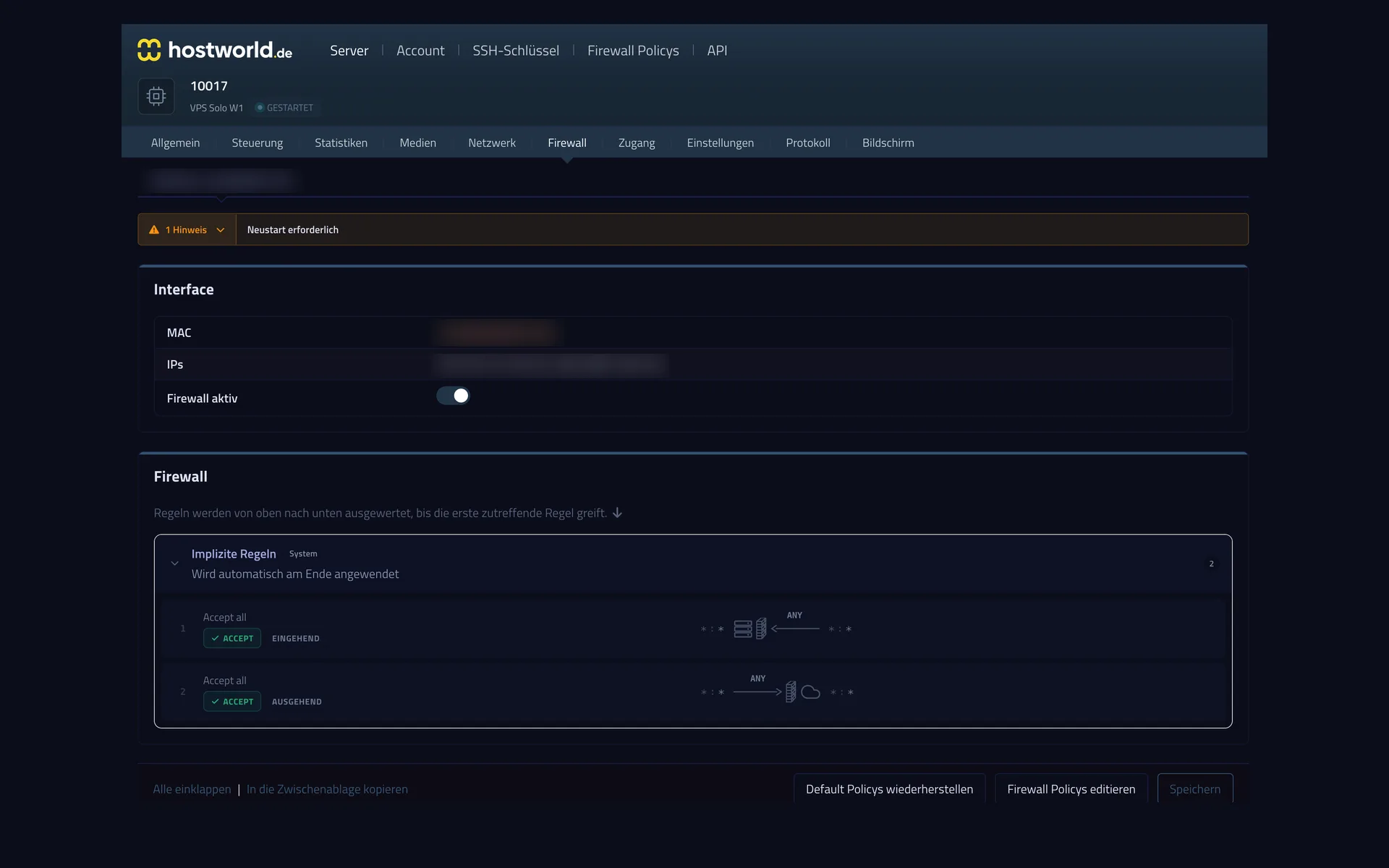
The firewall rules take effect in front of your server, so they also apply when something goes wrong inside the server itself. You can switch the firewall on and off at any time.
7 of 7
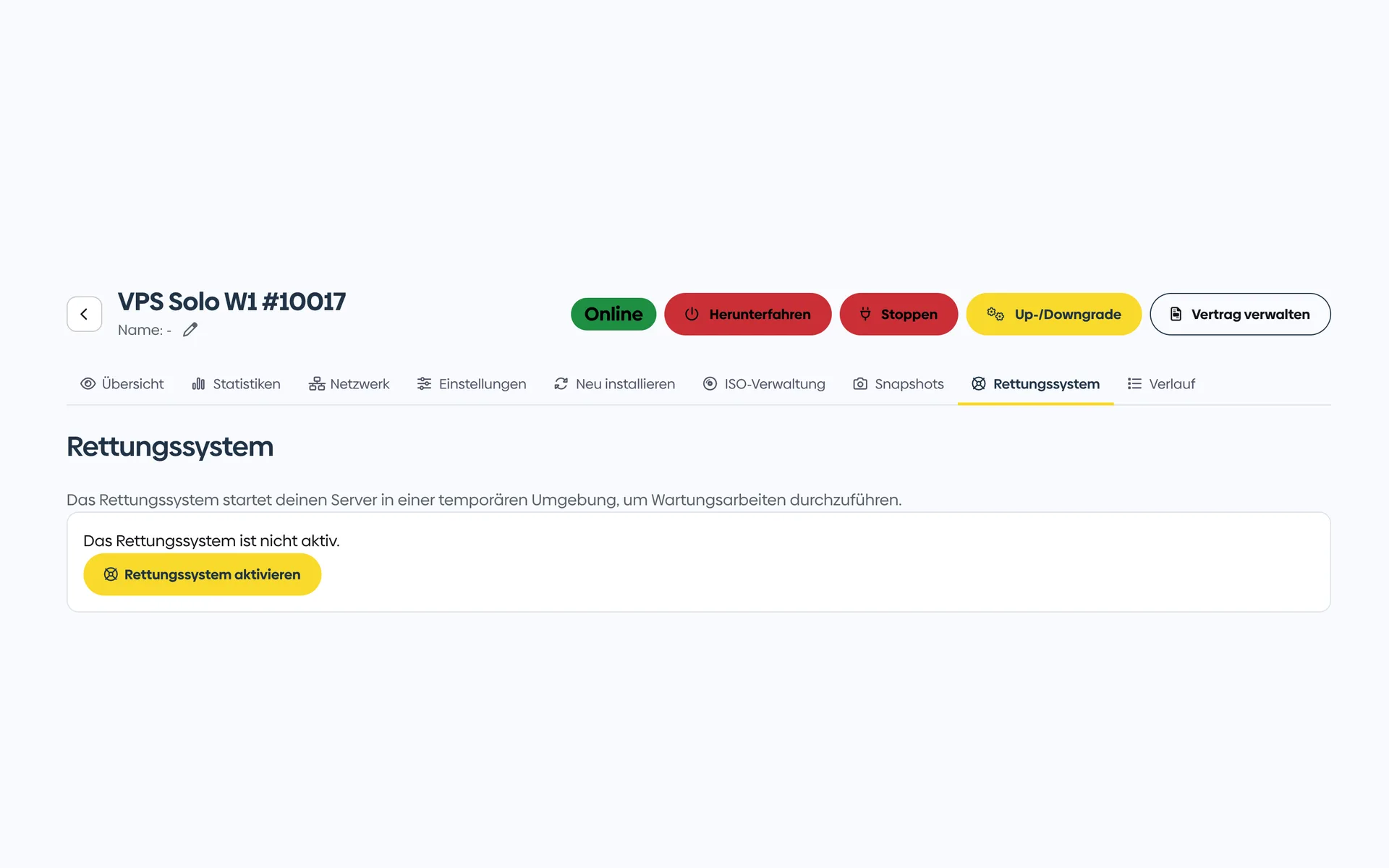
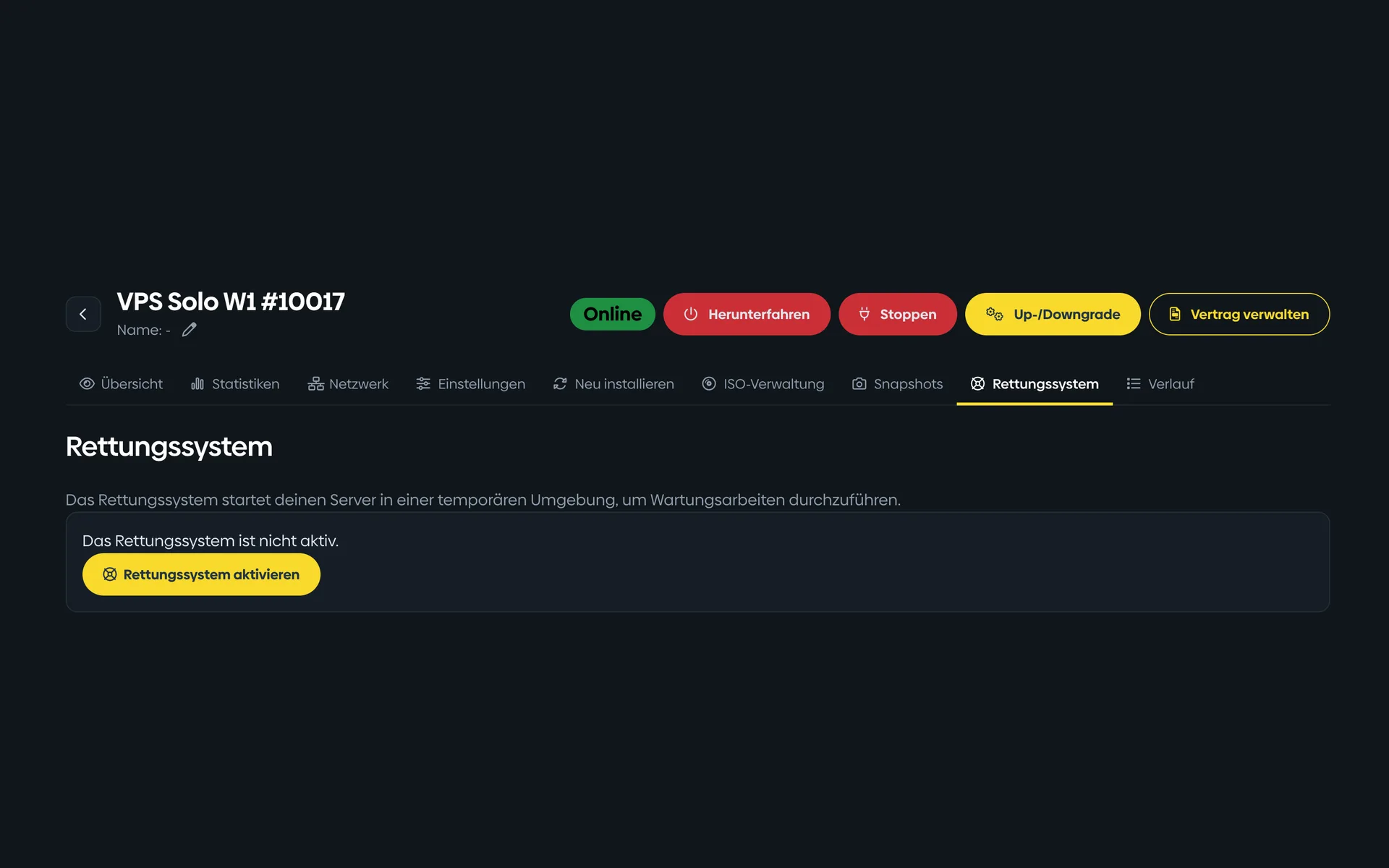
If the server no longer starts, you boot a small Linux, mount your disks, and get to your data. You activate the rescue system with one click.
Features
Plan comparison
| Feature | VPS Solo W1 | Most popularVPS Plus W1 | VPS Max W1 |
|---|---|---|---|
| vCPU | 2 | 4 | 8 |
| RAM (DDR5 ECC) | 4 GB | 8 GB | 32 GB |
| NVMe storage | 100 GB | 200 GB | 500 GB |
| KVM virtualization | ✓ | ✓ | ✓ |
| Full root access | ✓ | ✓ | ✓ |
| Snapshots | ✓ | ✓ | ✓ |
| VNC console | ✓ | ✓ | ✓ |
| Rescue system | ✓ | ✓ | ✓ |
| One-click distributions | 6 Linux distributions | 6 Linux distributions | 6 Linux distributions |
| Additional images | FreeBSD, rescue systems, Windows Server as image options | FreeBSD, rescue systems, Windows Server as image options | FreeBSD, rescue systems, Windows Server as image options |
| Custom images | iso, qcow, qcow2, raw (upload via browser or cURL) | iso, qcow, qcow2, raw (upload via browser or cURL) | iso, qcow, qcow2, raw (upload via browser or cURL) |
| VNC/rescue access for custom images | ✓ | ✓ | ✓ |
| Network connection | 1 Gbit/s | 2.5 Gbit/s | 2.5 Gbit/s |
| Traffic | unmetered (fair use) | unmetered (fair use) | unmetered (fair use) |
| IPv4 / IPv6 | 1× IPv4 + /64 IPv6 | 1× IPv4 + /64 IPv6 | 1× IPv4 + /64 IPv6 |
| DDoS protection | ✓ | ✓ | ✓ |
| Optional Cloud Backup | add-on from €7.95 / month | add-on from €7.95 / month | add-on from €7.95 / month |
| Plesk license available as add-on | ✓ | ✓ | ✓ |
| Storage add-ons | ✓ | ✓ | ✓ |
| Personal support | By email and phone | By email and phone | By email and phone |
| Server location | Germany | Germany | Germany |
| DPA (data processing agreement) | Create it yourself in the Customer Menu | Create it yourself in the Customer Menu | Create it yourself in the Customer Menu |
| Price per month | €9.95 | €17.95 | €44.95 |
| with a 12-month term | |||
| with a 24-month term | |||
| Setup fee | none | none | none |
| Notice period | 7 days | 7 days | 7 days |
FAQ
Choose your VPS. If you are unsure which size suits your tasks, we can help you select a plan.